User Guide
A complete tutorial regarding how to use GoSurvey. We have covered and explained everything related to the working of GoSurvey and its features.

Answer Filtering - Bulk Config
Bulk Config lets you create many Answer Filtering rules at once from an Excel file, instead of adding each filter criteria manually.
Use Bulk Config when a question has many options that depend on answers from an earlier question (for example, brand and model lists).
Bulk Config creates filters of type Filter current question answers, with condition operator =.
For manual setup of a few rules, see Answer Filtering.
Step 1:
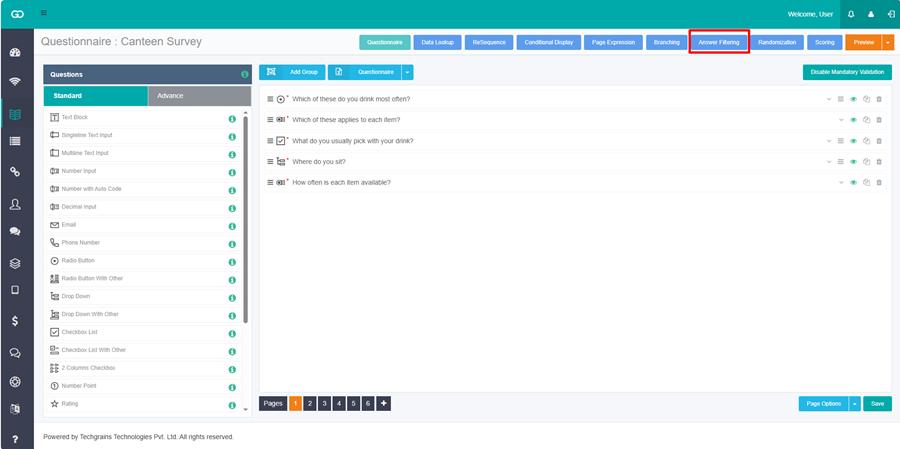
Open the survey questionnaire and click Answer Filtering at the top.
Step 2:
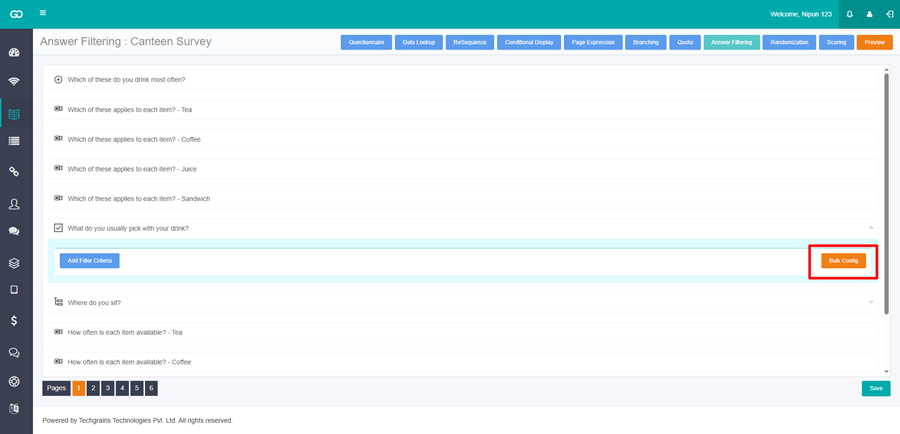
Expand the question whose options should be filtered (the current / child question). On the right side of the panel, click Bulk Config.
Step 3:
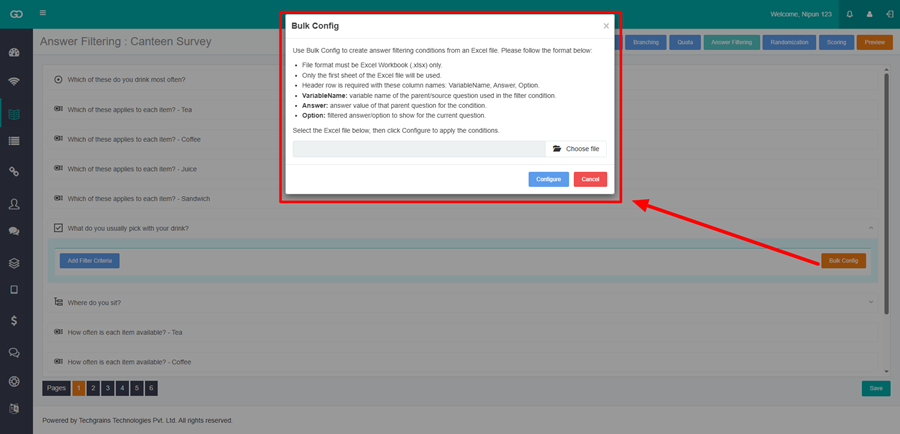
The Bulk Config popup opens. Prepare an Excel file using the format below.
Excel file rules:
- File format must be Excel Workbook (.xlsx) only.
- Only the first sheet of the Excel file will be used.
- A header row is required with these column names: VariableName, Answer, Option.
- VariableName: variable name of the parent/source question used in the filter condition.
- Answer: answer value of that parent question for the condition.
- Option: filtered answer/option to show for the current question.
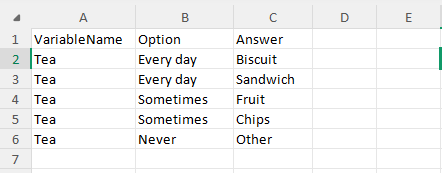
Example (Canteen Survey): The parent question is Which of these applies to each item? - Tea (variable name e.g. Tea). The current question is What do you usually pick with your drink? with options Biscuit, Sandwich, Fruit, Chips, and Other.
Sample Excel rows:
- VariableName = Tea, Answer = Every day, Option = Biscuit
- VariableName = Tea, Answer = Every day, Option = Sandwich
- VariableName = Tea, Answer = Sometimes, Option = Fruit
- VariableName = Tea, Answer = Sometimes, Option = Chips
- VariableName = Tea, Answer = Never, Option = Other
Rows with the same VariableName and Answer become one filter criteria. All Option values in that group are shown for that condition.
In this example, when the respondent selects Every day for Tea, What do you usually pick with your drink? shows Biscuit and Sandwich. When the respondent selects Sometimes, it shows Fruit and Chips. When the respondent selects Never, it shows Other.
Step 4:
In the popup, select the Excel file, then click Configure.
Step 5:
After Configure, check the filter criteria created on the question:
- Filter type is Filter current question answers
- Select Filtered Answer lists the correct options
- Each condition uses the parent question, operator =, and the matching answer
Step 6:
Click Save.
Notes:
- VariableName must match the parent question’s variable name exactly. If it does not match, that group is skipped.
- Answer and Option values should match the option text used in the survey.
- Duplicate rows (same VariableName, Answer, and Option) are ignored.
- Bulk Config replaces the existing filter criteria on that question with the rules from the Excel file. Review the list before you Save.