User Guide
A complete tutorial regarding how to use GoSurvey. We have covered and explained everything related to the working of GoSurvey and its features.

How to set image as an option/answer?
GoSurvey allows you to configure images as options in Radio Button and Checkbox question types.
For research surveys or user feedback surveys, at times it is required to show the image to the user to choose their preference or selection. GoSurvey provides an option to configure images as the option/answer of the question. To set image as an option, please follow the below steps:
Step 1:
Create a survey. For detailed information, review “How to create a survey?”
Step 2:
This option is available for Radio Button, Radio Button with Other, Checkbox List, Checkbox List with Other, 2 Column Checkbox, Radio Button with Text, and Checkbox with Text question types.
Step 3:
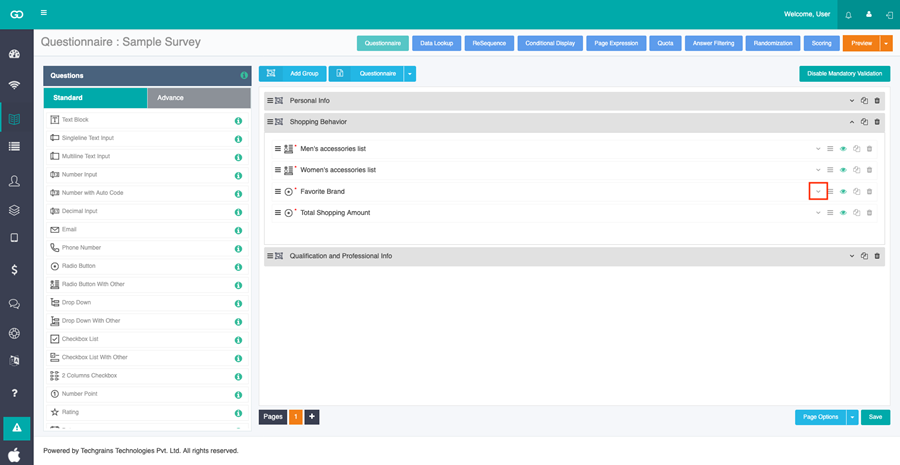
Click the question’s setting icon and you will see the ‘Media options’ field.
Check Media options. Each option is then shown on its own row, with a place to add its image. A Select Media Group button appears on the right.
You can enter each option in the Option column. Drag an option by the bar icon to change its order, and use the delete icon to remove an option.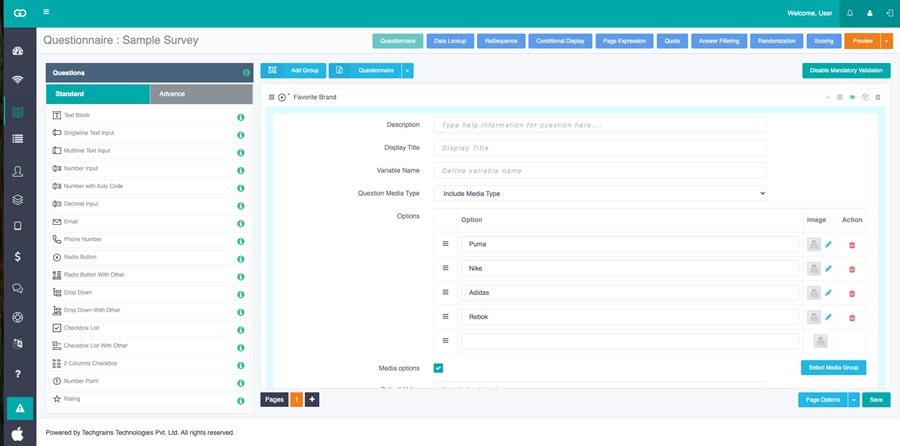
Step 5:
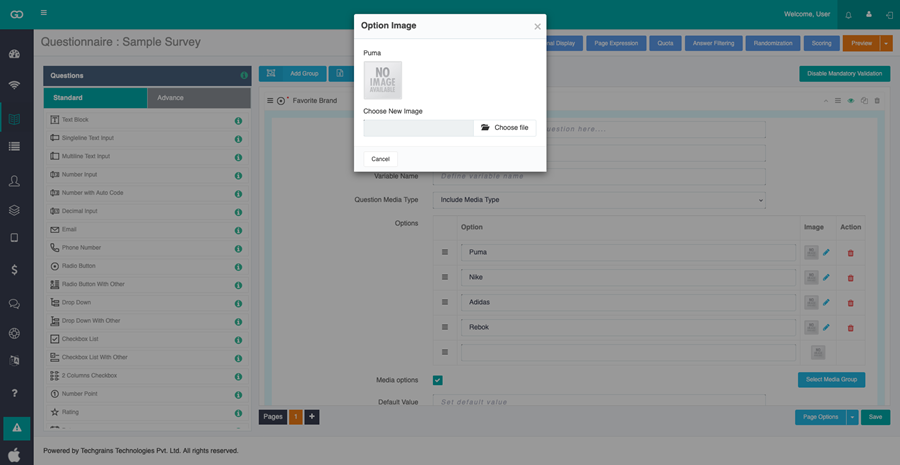
To set an image for one option, click the pencil icon in that option’s Image column. In Option Image, choose the image. It then appears in the Image column.
Step 6:
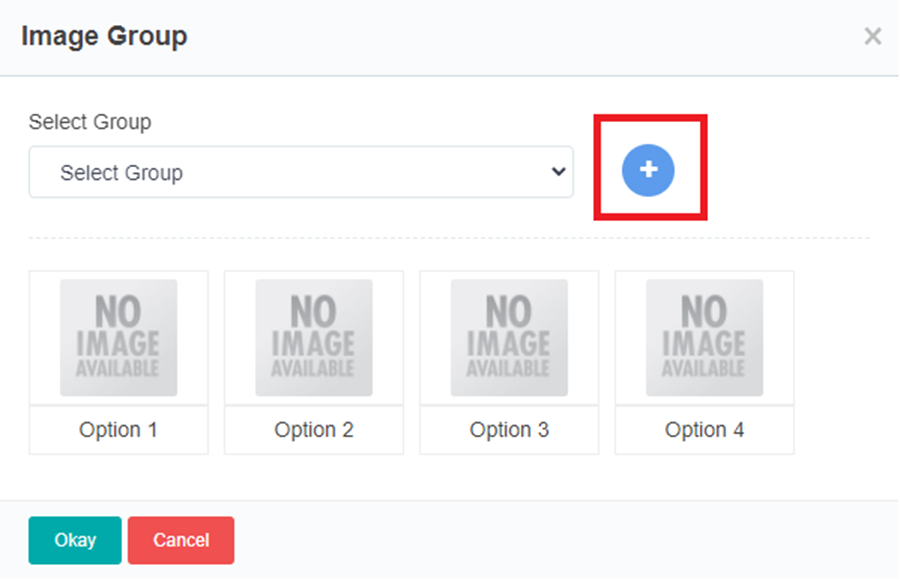
Click Select Media Group, The Image Group window opens. From here you can select an existing group, or create a new group.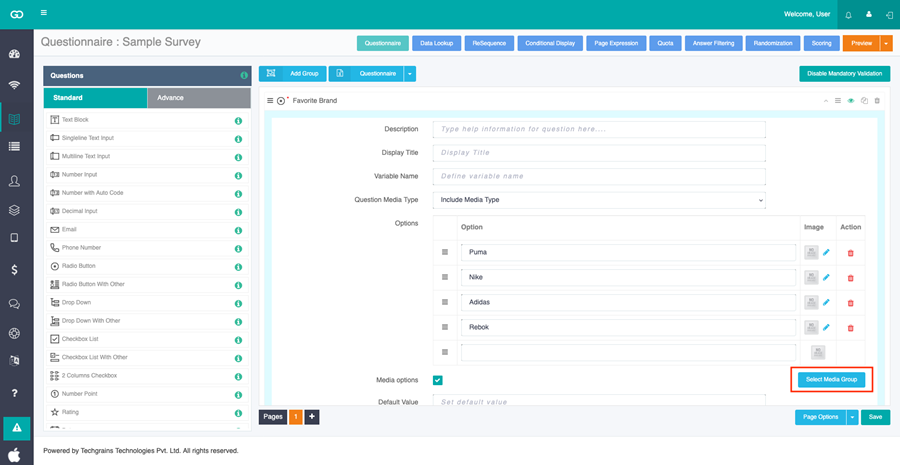
Step 7:
You can either create a new group or select from an existing group. Click the + icon and create a new group.
Step 8:
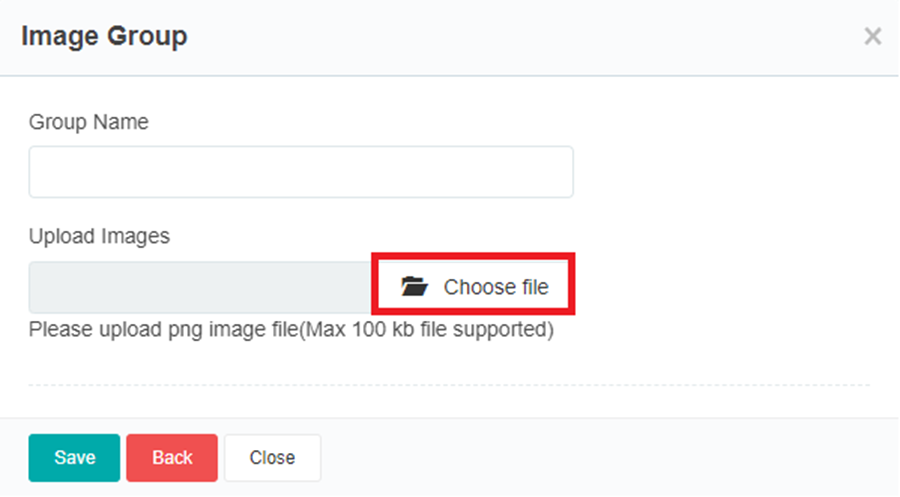
Enter a Group Name. Upload images by clicking Choose file. Use a png, jpg, or jpeg file. Recommended image size is 300×200 for better results.
Step 9:
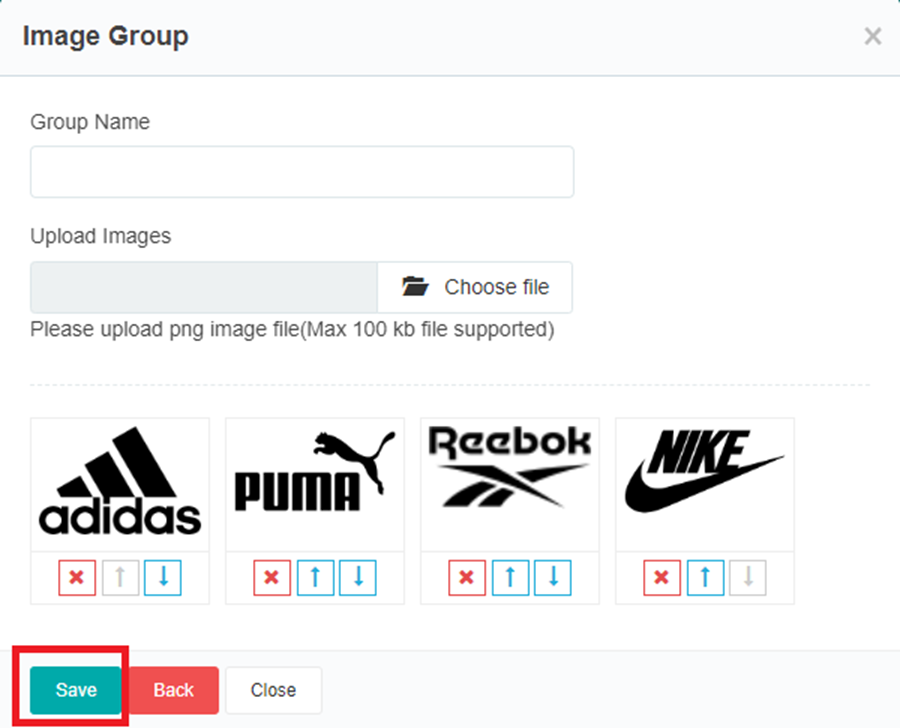
The first image is applied to the first option, the second image to the second option, and so on. Use the up and down arrows to change this order, and the X icon to remove an image. Once the images are uploaded, click Save.
Step 10:
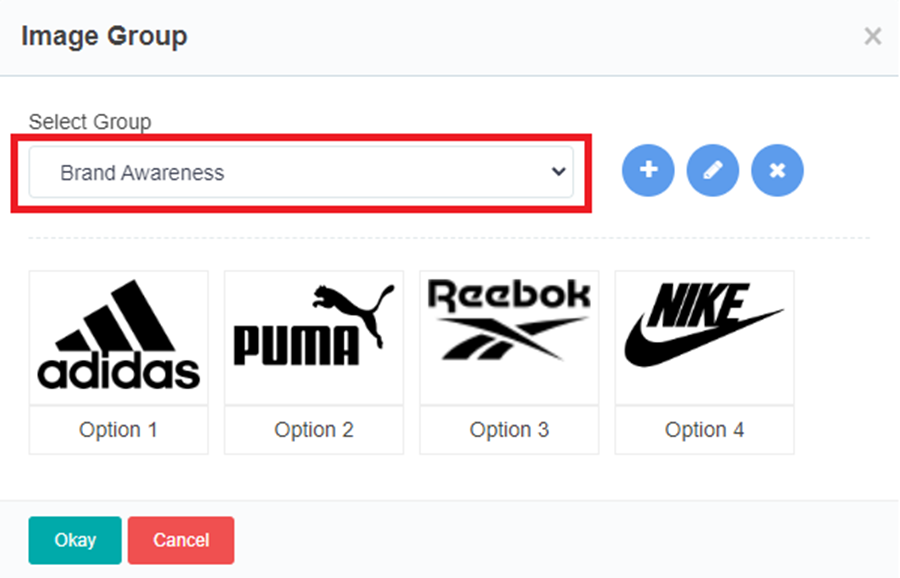
Select the recently created Image Group and click on Okay.
Lastly, save and publish the questionnaire.