User Guide
A complete tutorial regarding how to use GoSurvey. We have covered and explained everything related to the working of GoSurvey and its features.

How to restrict the number of option selection in checkbox questions?
With the help of Checkbox Min-Max you can restrict the number of option selection in multiple choice questions (Checkbox questions). The Checkbox Min-Max allows you to set a minimum and maximum number of option selection for checkbox questions.
The Checkbox Min-Max works for the following question types:
- Checkbox List
- Checkbox List With Other
- 2 Columns Checkbox
- Checkbox with Text
Checkbox Min:
Here, you can set a minimum number of choice a respondent has to make for a particular question.
For Ex:- Suppose you have a question where you want the respondent to select at least 3 options to successfully answer that question. Here you will have to set minimum value as 3.So, If the respondent selects 2 options or even 1, then the survey will notify user/ will not proceed further.
When they make 3 selections or more depending on the number of options available, the survey will proceed normally.
How to set minimum condition?
To set minimum condition, please follow the below steps.
Step 1:
Login to your GoSurvey account with your credentials and click on the Surveys option from the left panel.
Step 2:
You will arrive at the survey list page. Click directly on the edit icon under Questionnaire column, as shown below.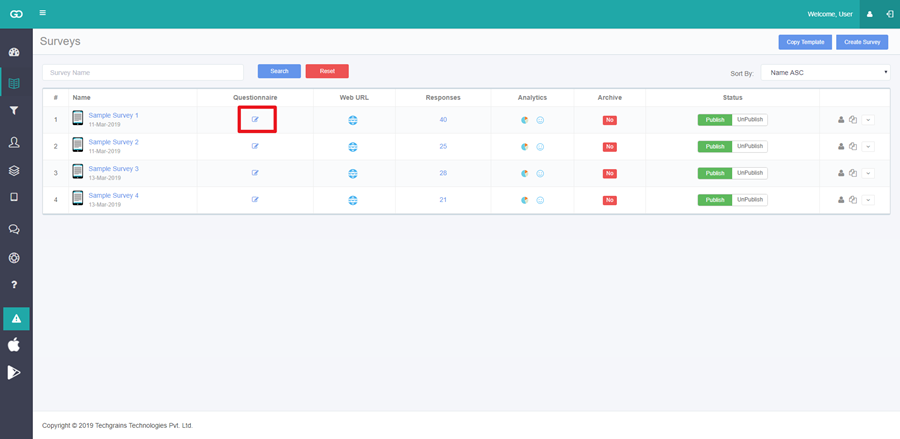
Step 3:
Please note that this condition can only be applied to Checkbox question types.
Step 4:
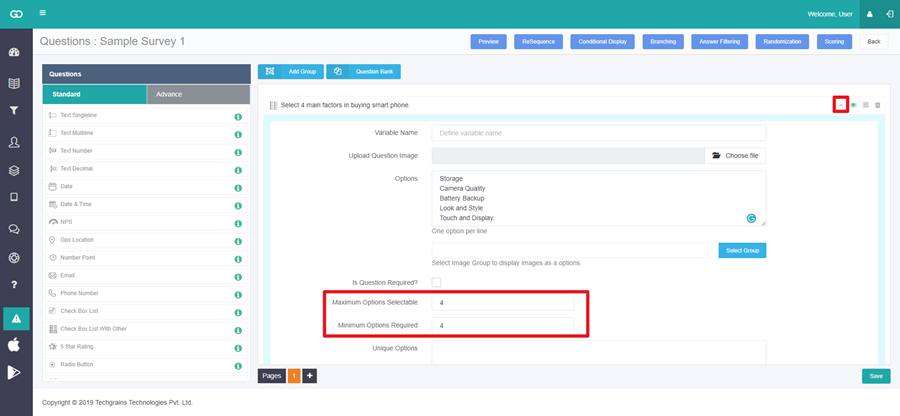
On the questionnaire panel, click on the drop-down next to the question and set the minimum value as shown below.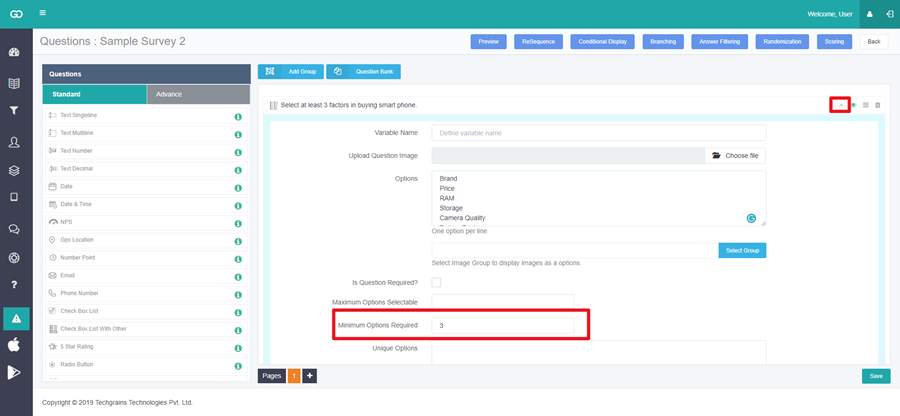
Checkbox Max:
Here, you can set a maximum limit to the number of choice a respondent has to make for a particular question.
For Ex- You have a question where you do not want the respondent to select more than 4 options. You can set the Max value as 4 in this case. In this case, if the respondent selects more than 4 options - say 5, the survey won’t proceed. When they choose 4 options or less than 4, the survey will proceed normally.
How to set maximum condition?
Step 1:
To set maximum condition, please follow the below steps.
Step 2:
Login to your GoSurvey account with your credentials and click on the Surveys option from the left panel.
Step 3:
You will arrive at the survey list page. Click directly on the edit icon under Questionnaire column, as shown below.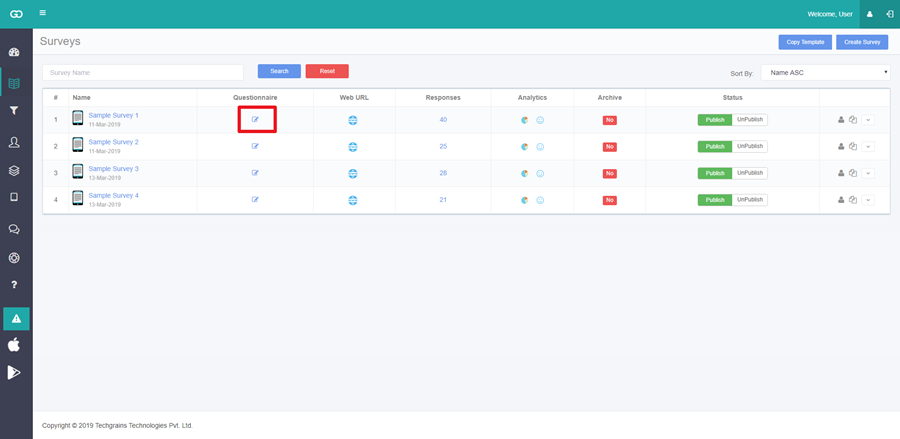
Step 4:
Please note that this condition can only be applied to Checkbox question types.
Step 5:
On the questionnaire panel, click on the drop-down next to the question and set the maximum value as shown below.