User Guide
A complete tutorial regarding how to use GoSurvey. We have covered and explained everything related to the working of GoSurvey and its features.

How to import external data?
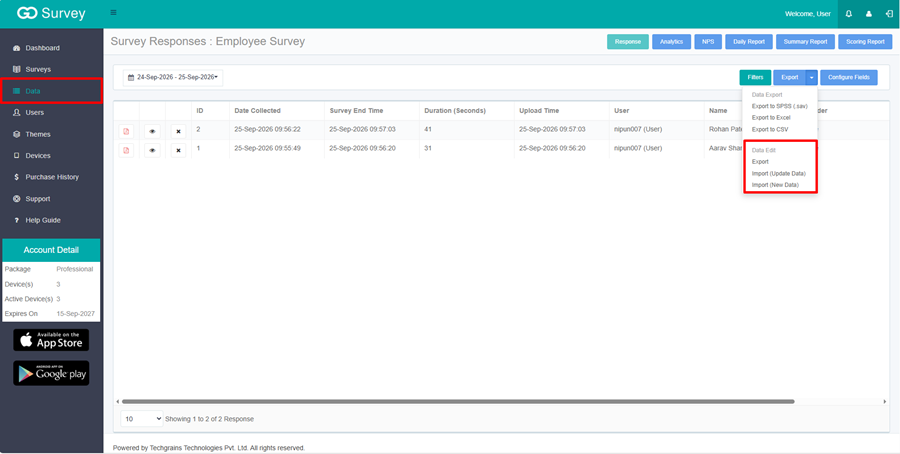
Open Data in the left menu. On Survey Data, click the number in the Responses column for the survey. Open Data Export. The options are under Data Edit.
Export downloads the Excel file used for both imports. Leave the top two rows unchanged. Those rows are the headers. If they are deleted or edited, the import is not applied. Save the file as an Excel Workbook (.xlsx). Other formats are not accepted. The file can be up to 100 MB.
1. Import (New Data)
Use this to add employees who are not in the survey yet. Each new row becomes one survey response.
Step 1:
Under Data Edit, click Export and save the Excel file. open Export Options, click Export.
Download Export File:
Step 2:
Leave the top two rows unchanged.
Step 3:
Enter one employee on each row under the headers. Leave ID empty.
Step 4:
On the response screen, open Data Export and click Import (New Data).
Step 5:
Select the .xlsx file and click Save.
After a successful import, new data are listed on the response screen.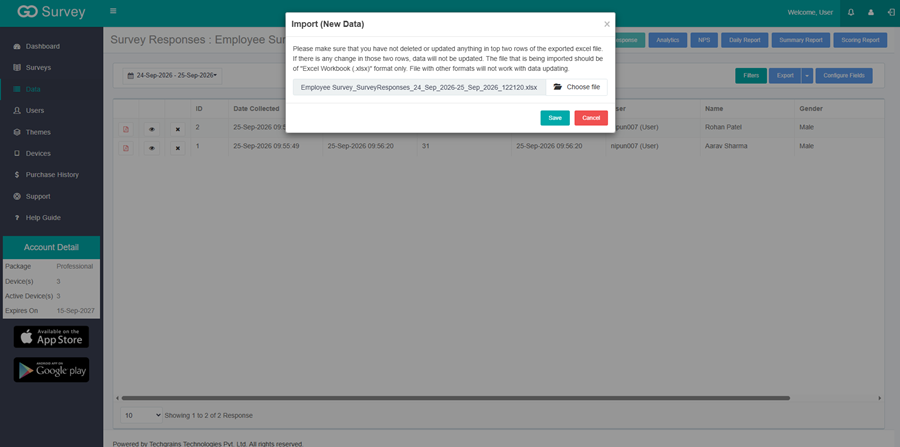
2. Import (Update Data)
Use this to change answers for employees who are already in the survey.
Step 1:
Open Export Options. Under Data Edit, click Export and save the Excel file. The file contains the current responses.
Download Export File:
Step 2:
Leave the top two rows unchanged. Leave the ID column unchanged.
Step 3:
Change only the answer you want to update. Leave the row as it was exported.
Step 4:
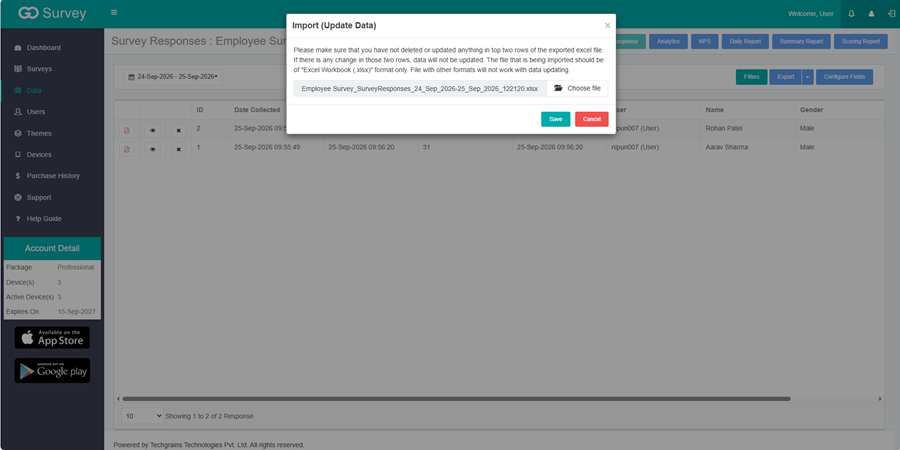
On the response screen, open Data Export and click Import (Update Data).
Step 5:
Select the .xlsx file and click Save.
After a successful import, updated data are listed on the response screen.