User Guide
A complete tutorial regarding how to use GoSurvey. We have covered and explained everything related to the working of GoSurvey and its features.

Quota
Quota stops new responses once a set number of matching answers has been collected. You set the question, the answer, and how many responses to allow. When that number is reached, the respondent sees your exit message and the survey ends
Below are the steps you need to follow in order to configure it.
Step 1:
Login to your GoSurvey account with the same credentials you used while creating the account.
Step 2:
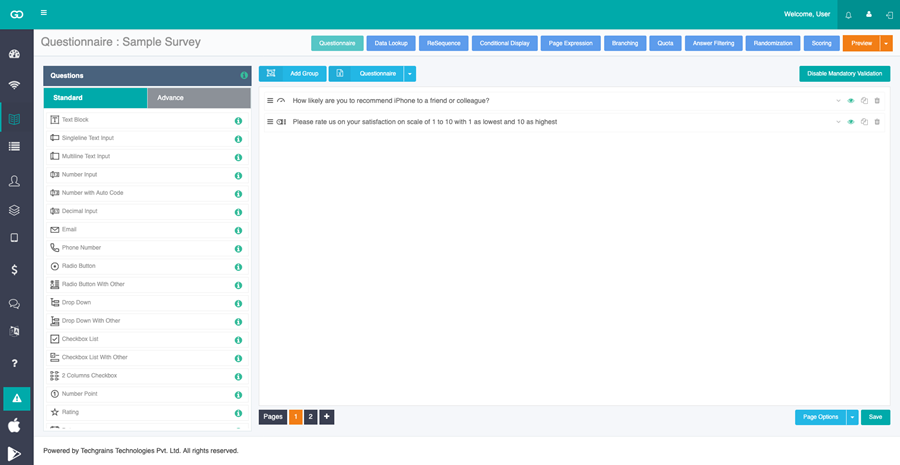
Click on the survey where you need to configure the Quota feature. After selecting the survey, go on to the Questions screen as shown below.
Step 3:
Select Quota button at the top of the questionnaire screen. The Quota screen opens for that survey.
Select the page at the bottom. Quota is set for that page. It cannot be set on the last page. A page that already has quota is highlighted.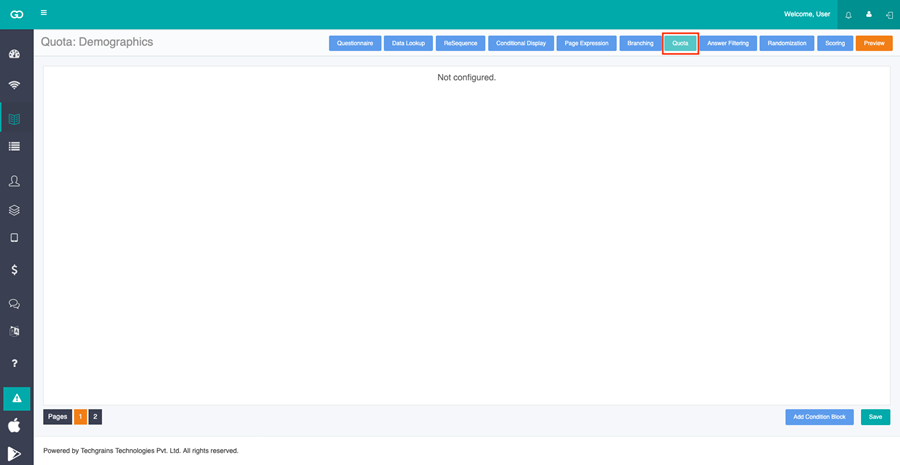
Step 4:
Click Add Condition Block at the bottom right.
In the block, set Question, Operator, and Answer. Click the X on a row to remove that condition.
Click Add Condition to add another question in the same block.
And Block uses a color. Rows with the same color must all match. A row with no color stands on its own.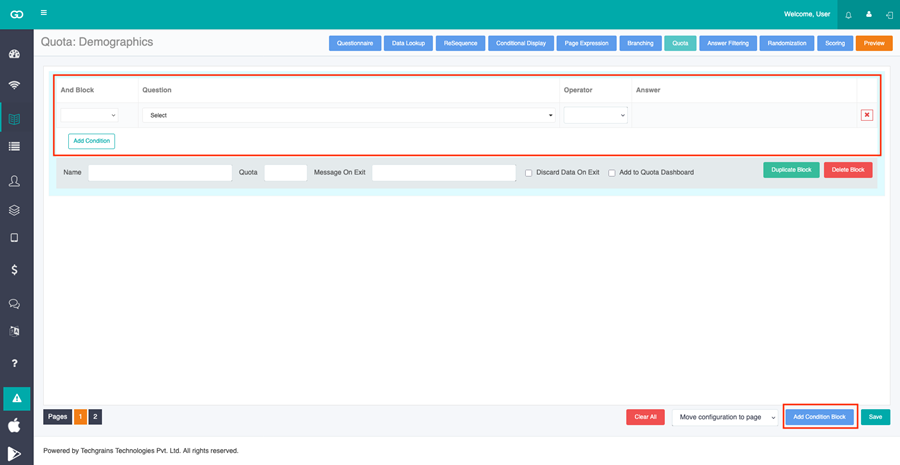
Step 5:
On the same block, set:
- Name — a short name for this quota
- Quota — how many matching responses to allow
- Message On Exit — what the respondent sees when the quota is full
Check Discard Data On Exit when the response that fills the quota should not be kept.
Check Add to Quota Dashboard to show this quota on the Quota dashboard.
Click Duplicate Block to copy the block and change the question, the answer, or the quota.
Click Delete Block to remove that block. The other blocks on the page stay as they are.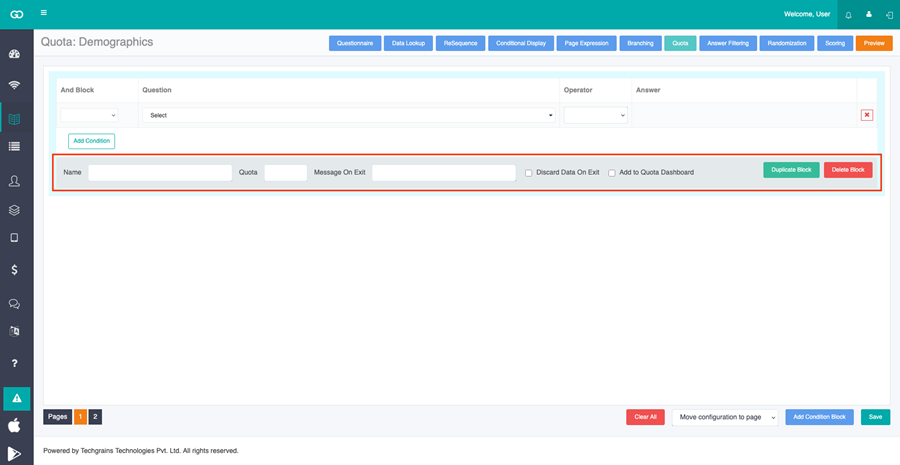
Step 6:
Quota example:
Set a quota so only 5 Male respondents can complete the survey.
Add a condition block and set:
- Question: What is your gender?
- Operator: =
- Answer: Male
- Name: Male
- Quota: 5
- Message On Exit: Male quota reached
Once 5 Male respondents complete the survey, the Male quota is full. The next person who selects Male sees Male quota reached, and the survey ends.
To allow 5 Female respondents as well, click Duplicate Block and change Answer to Female, Name to Female, Quota to 5, and Message On Exit to Female quota reached.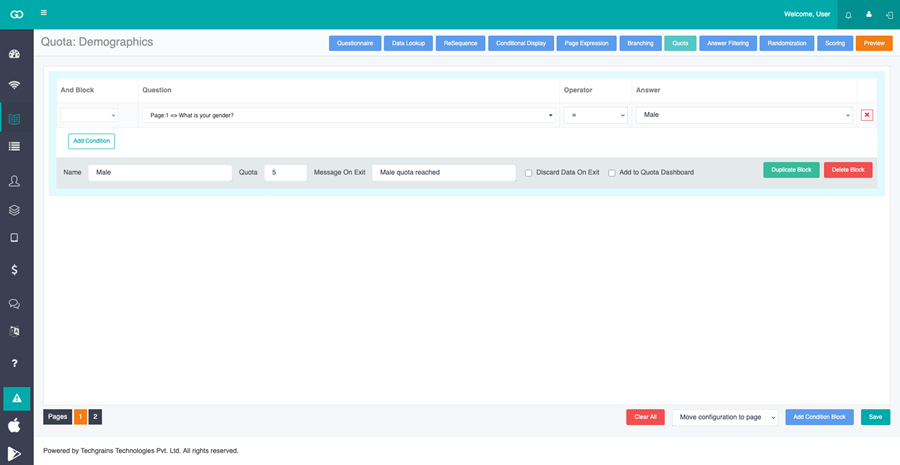
Step 7:
At the bottom, open Move configuration to page and choose another page. This moves all the quota on the current page to that page. The current page and the last page are not in the list.
Click Clear All to remove every quota block on the current page.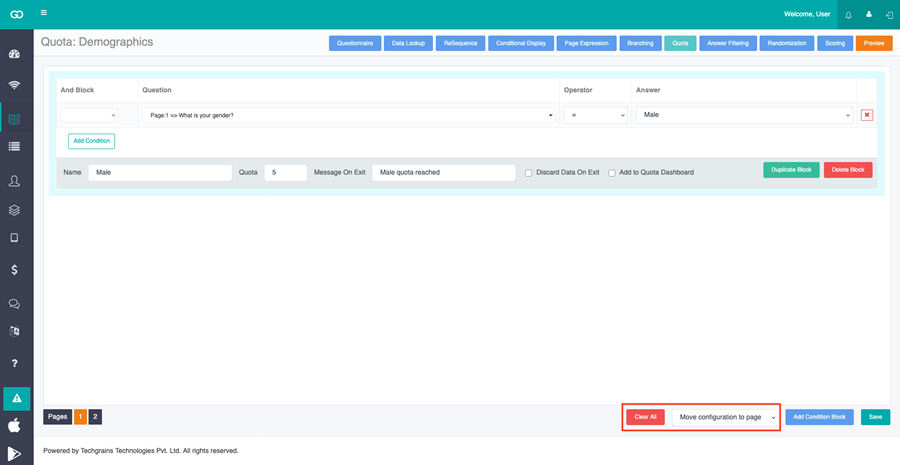
Step 8:
Click Save. Then Publish the survey.