User Guide
A complete tutorial regarding how to use GoSurvey. We have covered and explained everything related to the working of GoSurvey and its features.

How to set user based question visibility?
The specific questions for a survey can be assigned to a user - while setting up the user's survey assignment. 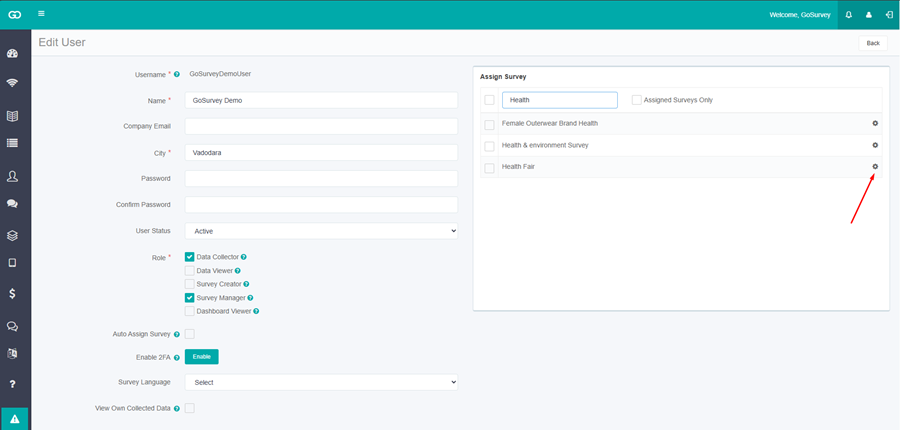
Step 1:
Go to Users and click Edit for the user.
Step 2:
In Assign Survey, select the survey so it is assigned to the user.
Step 3:
Click the setting icon next to that survey. The Configure Fields dialog opens.
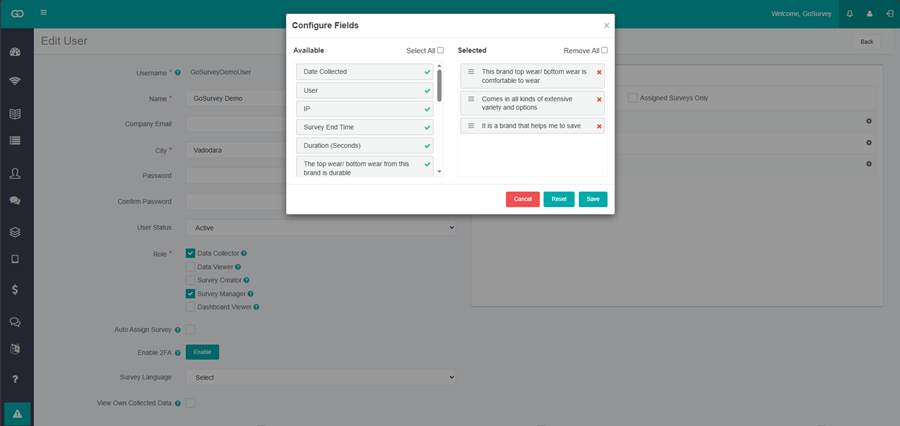
- Available lists the questions that are not selected for this user.
- Selected lists the questions this user is allowed to see.
- Click the green check to move a question from Available to Selected.
- Click the red cross to move a question back to Available.
- Select All moves every available question to Selected.
- Remove All moves every selected question back to Available.
- Drag a question in Selected to change its order.
Step 4:
Click Save to keep the selection. Click Reset to clear the saved selection for this user and survey. Click Cancel to close without saving.