User Guide
A complete tutorial regarding how to use GoSurvey. We have covered and explained everything related to the working of GoSurvey and its features.

How to connect a survey to Google Sheet?
Google Sheet sends the responses of a survey into a Google spreadsheet. One survey is linked to one worksheet tab. One worksheet tab is linked to one survey.
The Google account you connect must be able to edit that spreadsheet.
Step 1:
In the left menu, click Integration. The page title is Integration.
The list has one row, Google Sheet.
Step 2:
In that row, click Connect.
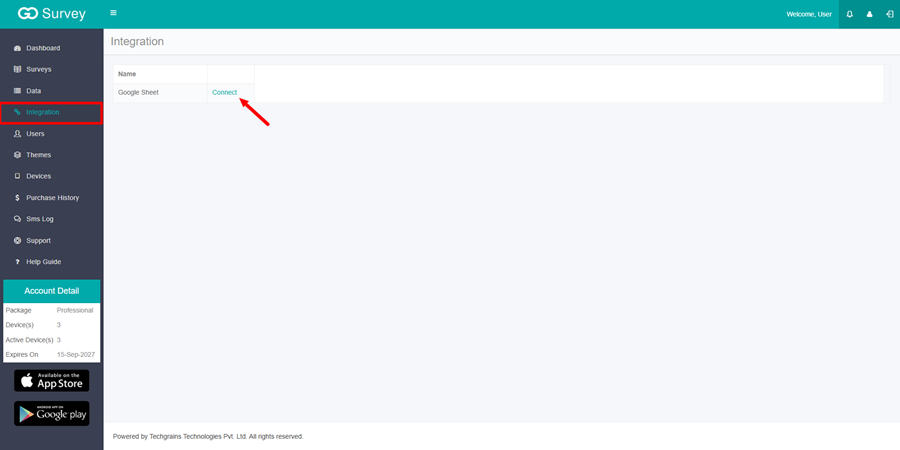
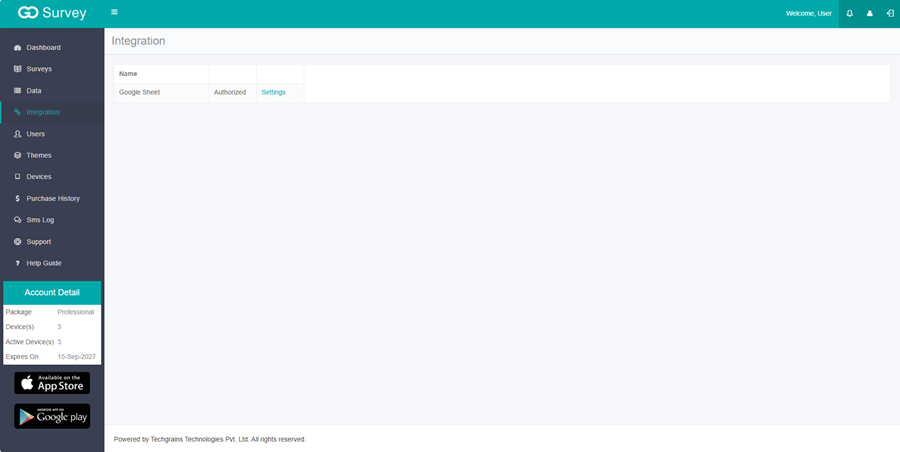
A Google window opens. Sign in with the Google account that can edit the spreadsheet, and allow access. When the window closes, the Integration page reloads. The row then shows Authorized, and Settings appears.
Step 3: In Google Sheets, open the spreadsheet and select the worksheet tab that should receive the responses. Copy the address from the browser.
The address must start with https://docs.google.com/spreadsheets/d/ and it must include gid=. The gid is the worksheet tab.
Example:
https://docs.google.com/spreadsheets/d/1AbCDeFgHiJkLmNoPqRsTuVwXyZ0123456789/edit#gid=0
Step 4:
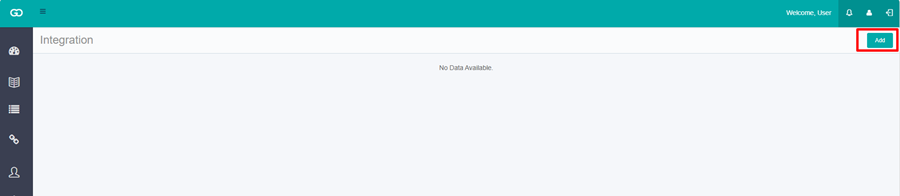
On the Integration page, click Settings on the Google Sheet row. Click Add. The dialog title is Google Worksheet Link.
Google Worksheet Link: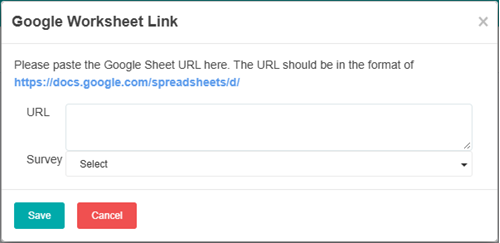
Paste the address into URL. In Survey, search and select one survey. The first item in the list is Select Survey. A survey that is already linked does not appear in the list. Click Save.
If the address is missing gid=, or it does not start with https://docs.google.com/spreadsheets/d/, the message is Please enter correct URL.
Step 5:
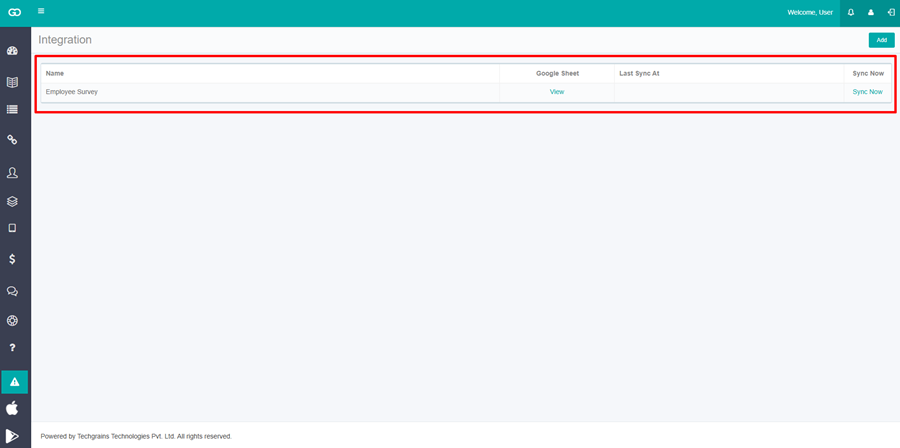
The survey is added to the list. The columns are Name, Google Sheet, Last Sync At, and Sync Now.
Click View to open that worksheet tab. Click Sync Now to send the responses now. After a successful sync, Last Sync At shows the time of that sync.
The first sync writes the column headings, then the responses. The columns are the same as the survey data export. Later syncs add responses that are not already in the sheet. GoSurvey also adds new responses on its own. Sync Now sends them immediately.
Sent the responses to the Google Sheet.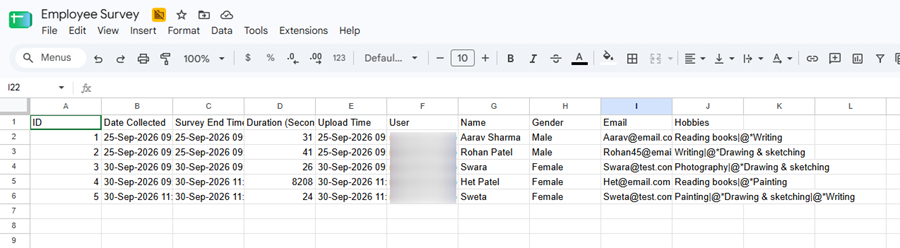
After a successful sync, Last Sync At shows the time of that sync.