User Guide
A complete tutorial regarding how to use GoSurvey. We have covered and explained everything related to the working of GoSurvey and its features.

How to view Quota report?
The Quota report shows how many responses have been collected against each quota you set.
To view daily collected responses, follow the below steps:
Step 1:
Login to GoSurvey admin site by using the same credentials that were set while creating the account. Once logged in, click on the Data menu.
Step 2:
The survey list opens with each survey and its response count.
Click the number in the Responses column for that survey.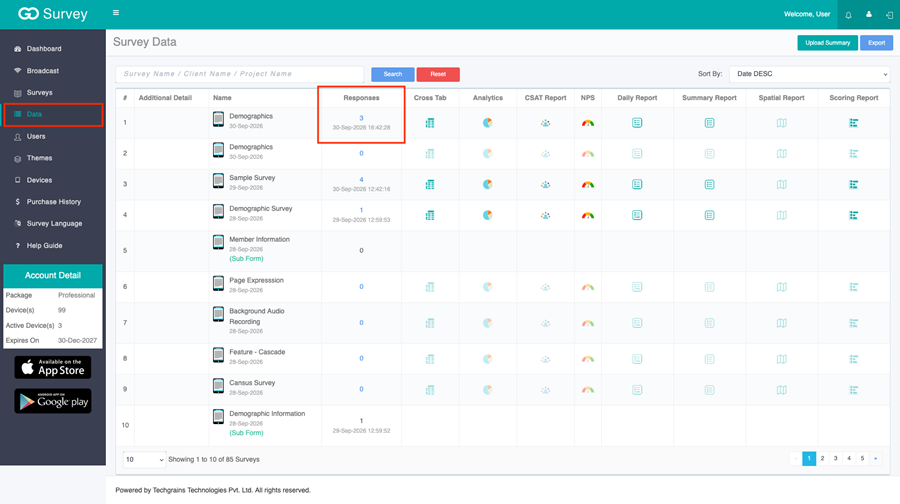
Step 3:
Click Quota at the top of the response list.
The report title is Quota. Each quota shows its name, how many matching responses have been collected, and the progress toward the target. The number in the center is the count so far. The percentage under it is the progress. 0 is on the left, and the target is on the right.
For example, a Male quota of 5 with 2 responses shows 2 and 40.00%, with 5 on the right. When the count reaches the target, that quota is full.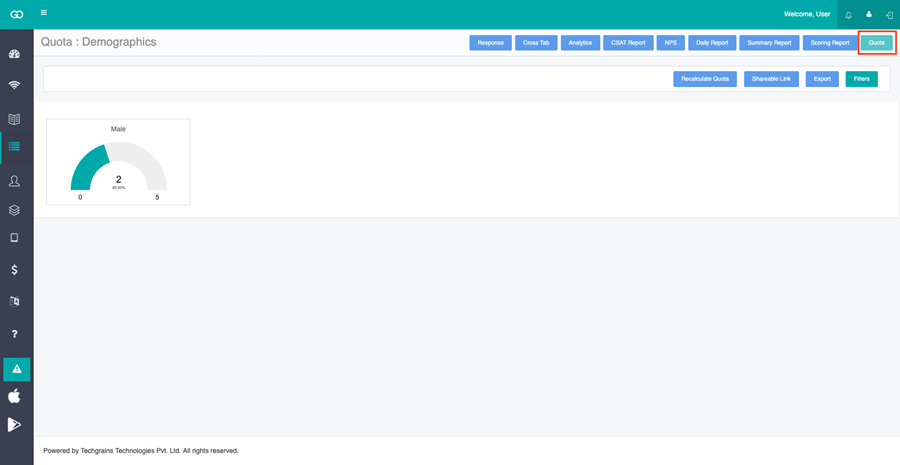
Step 4:
Click Recalculate Quota to update the counts from the collected responses.
Click Shareable Link to open Quota Link. Click Copy, then Close. Share that link so others can see the quotas.
Click Export to download the report in Excel. The file has Name, Target, Achieved, Remaining, and Progress (%).
Click Filters to choose which quotas to show. Each quota name has a checkbox. Clear a checkbox to hide that quota, then click Okay.