User Guide
A complete tutorial regarding how to use GoSurvey. We have covered and explained everything related to the working of GoSurvey and its features.

How to encrypt survey answers?
Data Encryption stores the answer of a selected question in encrypted form. GoSurvey keeps the RSA 2048 Public Key. Keep the matching private key yourself. GoSurvey does not store the private key.
Step 1:
Open the survey in Edit.
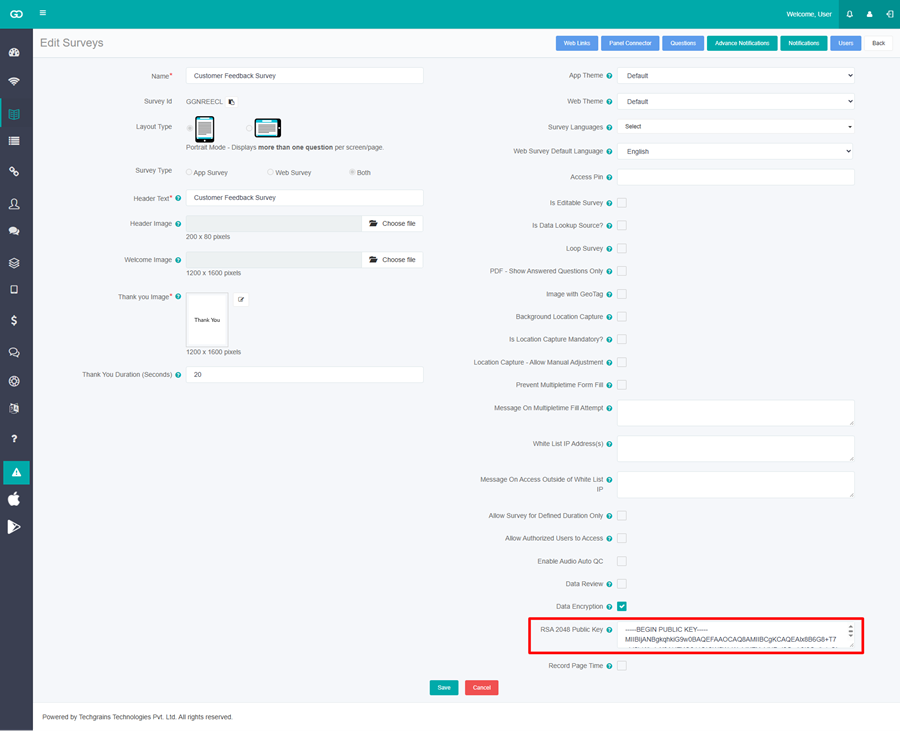
Check Data Encryption. RSA 2048 Public Key appears. Paste the public key into that box. Click Save.
The public key is required. If it is empty, the message is RSA 2048 Public Key is required.
After the survey is saved, the key box is replaced by View Key. Click View Key to see the saved public key. The dialog title is RSA 2048 Public Key.
Step 2:
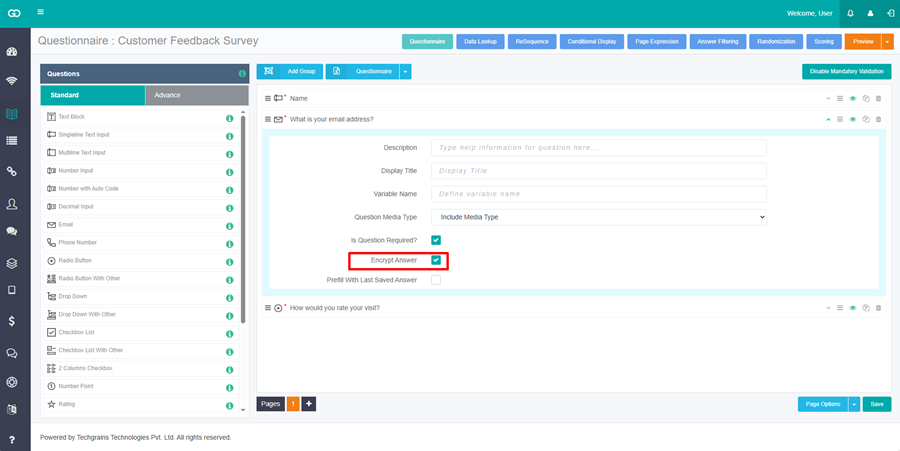
Open the questionnaire. Expand the question whose answer should be encrypted. Check Encrypt Answer. Save the questionnaire.
Encrypt Answer is on text, number, choice, date, rating, and grid questions. It is not on Number Auto Code.
Example survey: Customer Feedback Survey. Question text: What is your email address?. Check Encrypt Answer on that question.
Once a question is saved with Encrypt Answer, Data Encryption stays on and cannot be cleared.
After the survey has responses, Encrypt Answer cannot be cleared on that question. You can still check it on a question that is not encrypted.
Step 3:
Collect responses.
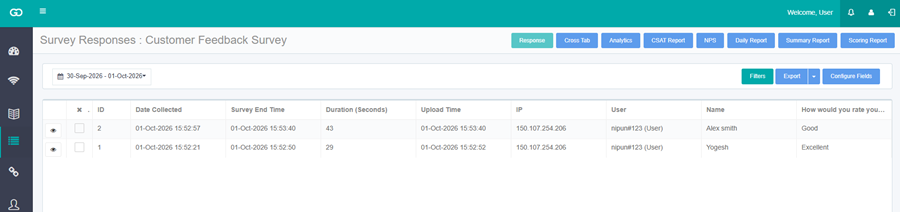
The encrypted answer is not shown in the response list, and it is not included in the Excel export.
Step 4:
Download the encrypted answers.
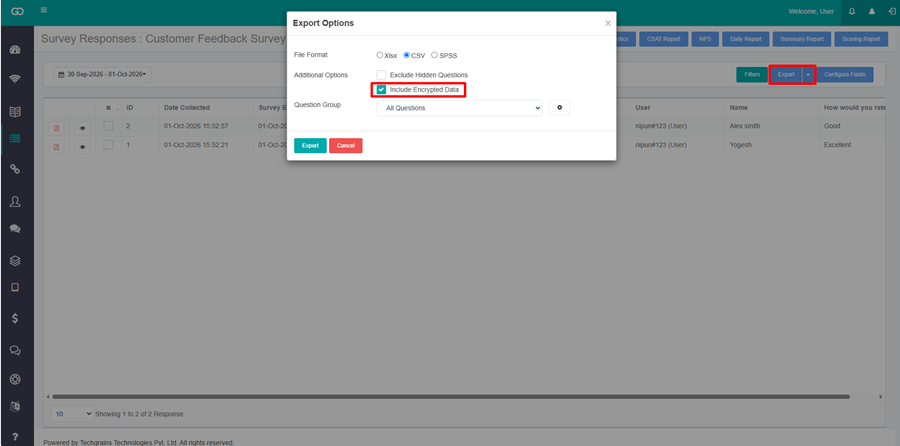
In the left menu, click Data. Open the survey responses. Click Export. The dialog title is Export Options.
Select CSV. Check Include Encrypted Data. This checkbox appears when the survey has a question with Encrypt Answer. Click Export.
The CSV contains the encrypted answers. Use the private key that matches the RSA 2048 Public Key to read them.