User Guide
A complete tutorial regarding how to use GoSurvey. We have covered and explained everything related to the working of GoSurvey and its features.

Conditional Display
What is conditional display and how to configure it?
Step 1:
Login to your GoSurvey account with the same credentials you used while creating the account.
Step 2:
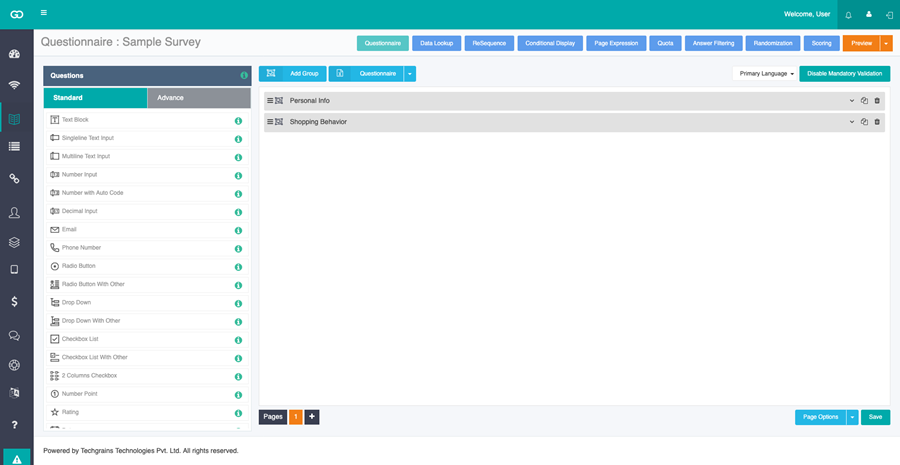
Click on the survey where you need to configure the conditional display feature. After selecting the survey, go on to the Questions screen as shown below.
Step 3:
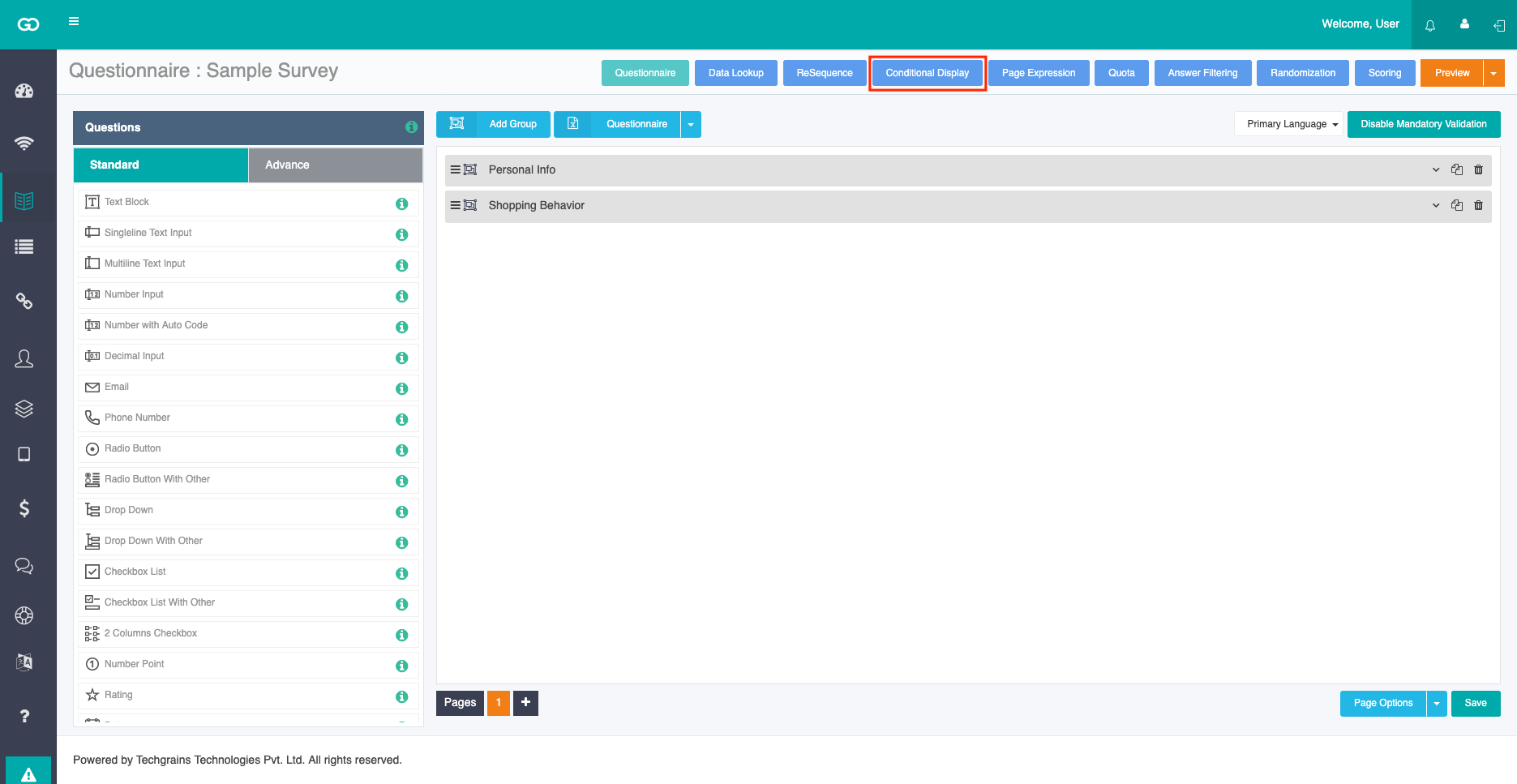
Select Conditional Display at the top of the questionnaire screen. The Conditional Display screen opens for that survey.
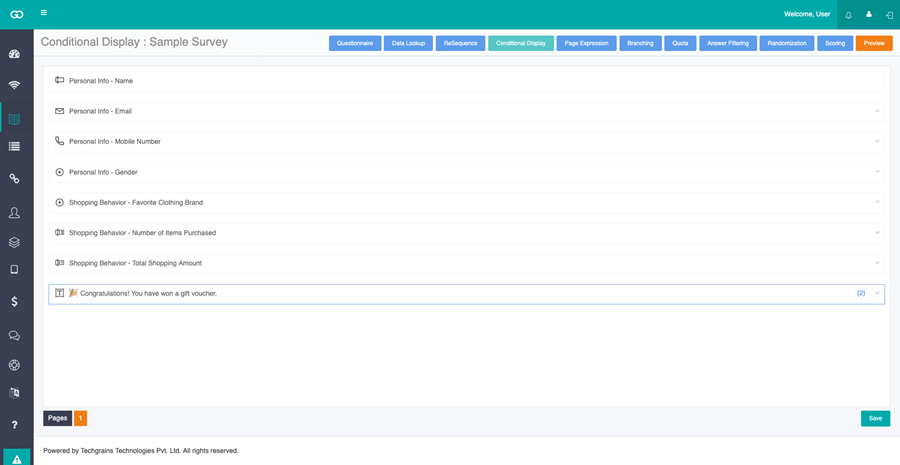
Choose the question on which you want to apply conditional display feature. There are different operators for every question type where the conditional display logic will be applied accordingly.
There are 4 fields that needs to be selected, they are as follows:
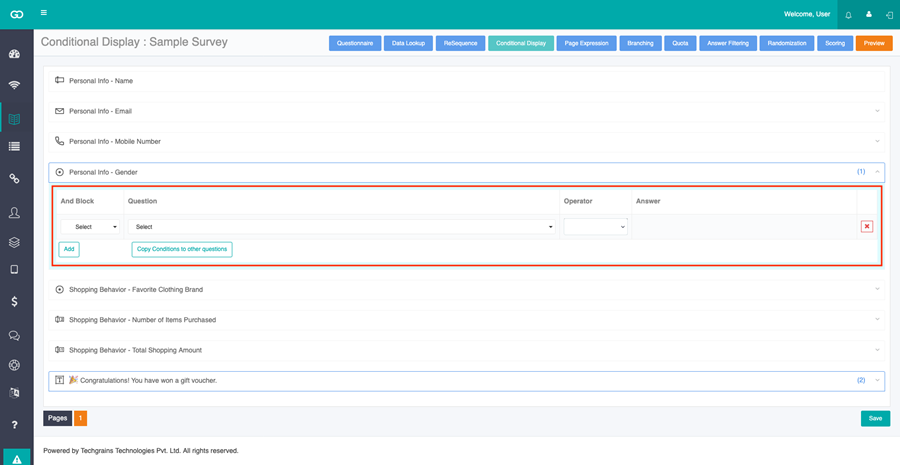
- And block
And block condition is generally used when a question depends on more than one earlier answer. Choose the same color for conditions that must all be true. Use a different color for a separate group. The question is shown when any one group is true. - Question
Select the question from the dropdown list on which the current question is dependent upon. If a question is dependent on the truthness of more than one question then just click on “Add” to add another question and make a block of that question set. - Operator
In the context of various question types, different operators are available for data manipulation. - For the "Free Text" question type, the following operators can be applied:
- "=" (equals)
- "!=" (not equals)
- "Contains"
- "Not contains"
- "Has answer"
- "Not answered"
- When dealing with question types like "Date" and "5-star rating," the following operators are applicable:
- "=" (equals)
- "!=" (not equals)
- "<" (less than)
- ">" (greater than)
- "Has answer"
- "Not answered"
- For Radio Button and Radio Button With Other, the following operators can be applied:
- "=" (equals)
- "!=" (not equals)
- "Answer=" (answer equals)
- "Answer!=" (answer does not equal)
- "Is Any of"
- "Is none of"
- "Has answer"
- "Not answered"
- Checkbox List, Checkbox List With Other, Checkbox with Text, and 2 Columns Checkbox offer these operators:
- "Contains"
- "Not contains"
- "Has answer"
- "Not answered"
- "Count()=" (count equals)
- "Count()>" (count greater than)
- "Count()<" (count less than)
- "Has Selected"
- "Is Any of"
- "Is none of"
- Value
Once you are done with selecting the operator, the next thing you need to select is “value”. Choose it from the list when the earlier question has options. Type it when the earlier question is text.
Step 5:
Copy Conditions to other questions copies the conditions you have set on this question to other questions.
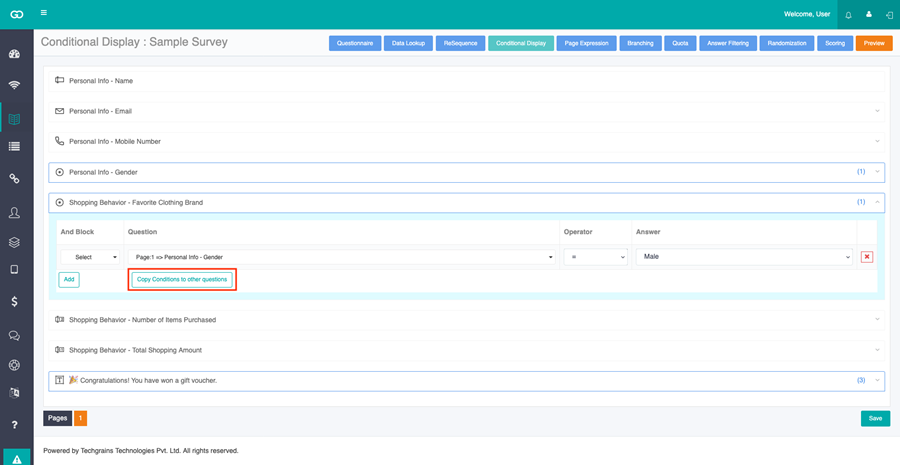
Select those questions and click Apply.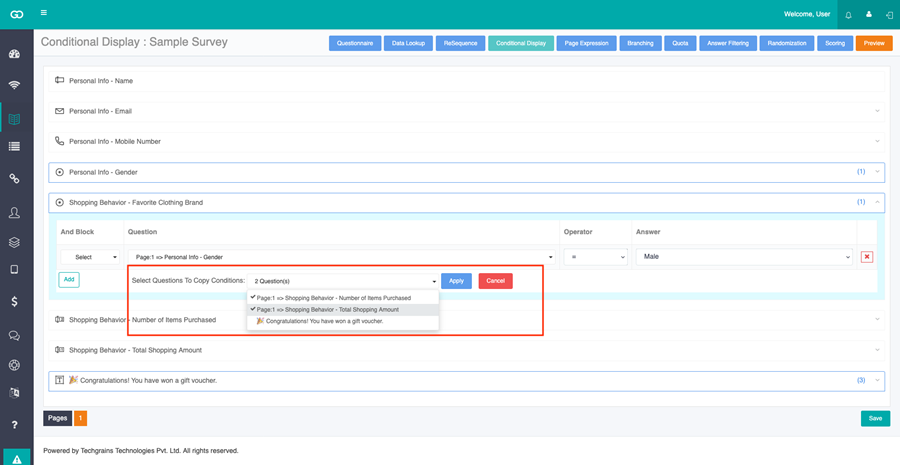
Step 6:
You can configure multiple conditions to a particular question, depending upon your requirements.
A practical example is explained below:
For example: Customers who have shopped for more than Rs 5000/- or have purchased 2 products of “Levis” brand, will receive a Gift Voucher. So here, there are 2 different conditions. First, on purchase of more than Rs 5000/- customers will receive a gift voucher and, Second, if they purchase more than 2 products from a levis store. So here in the second scenario, “And Block” condition will be used, as the question Gift Voucher is dependent upon the truthness of two questions. First, Brand should be Levis and second, number of product purchased must be more than 2.
As you can see in the image below, “And Block” is defined on two questions “Shopping Behavior - Favorite Clothing Brand” and “Shopping Behavior - Number of Item Purchased.”
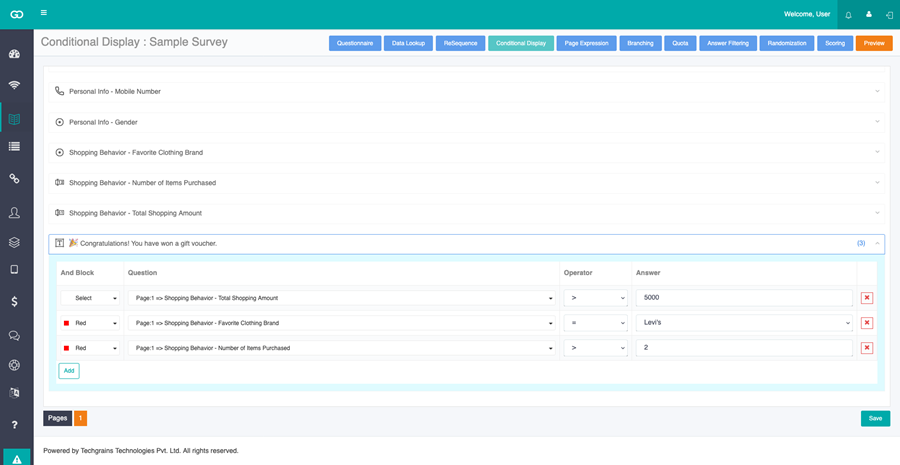
Once both the answer will match with the condition, the user will get the gift voucher otherwise, they will not be eligible for the voucher.
Step 7:
Save the changes and Publish the survey.