User Guide
A complete tutorial regarding how to use GoSurvey. We have covered and explained everything related to the working of GoSurvey and its features.

Partial Form Completion
Partial form completion is a feature in GoSurvey that lets you save incomplete survey forms.
Following is an example that will help you understand and use this feature easily.
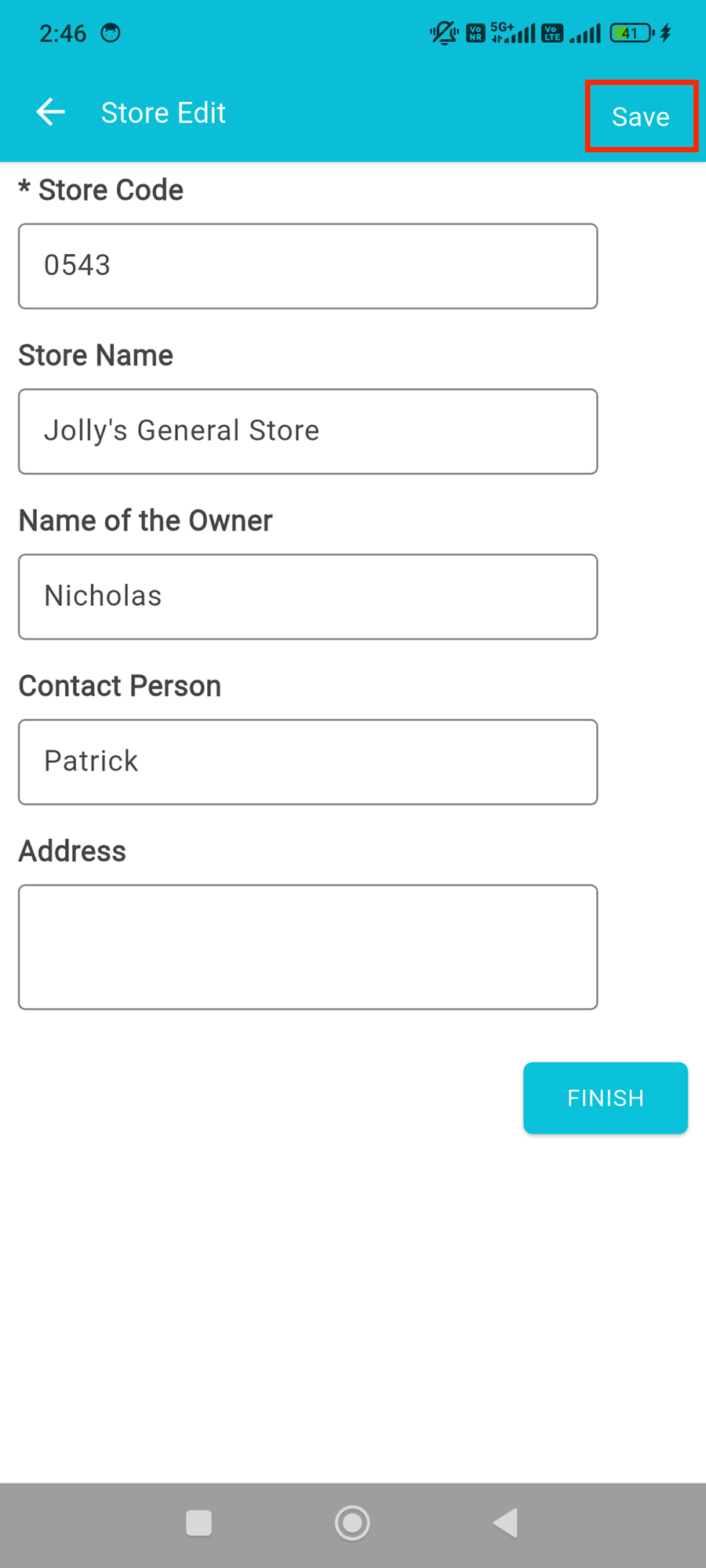
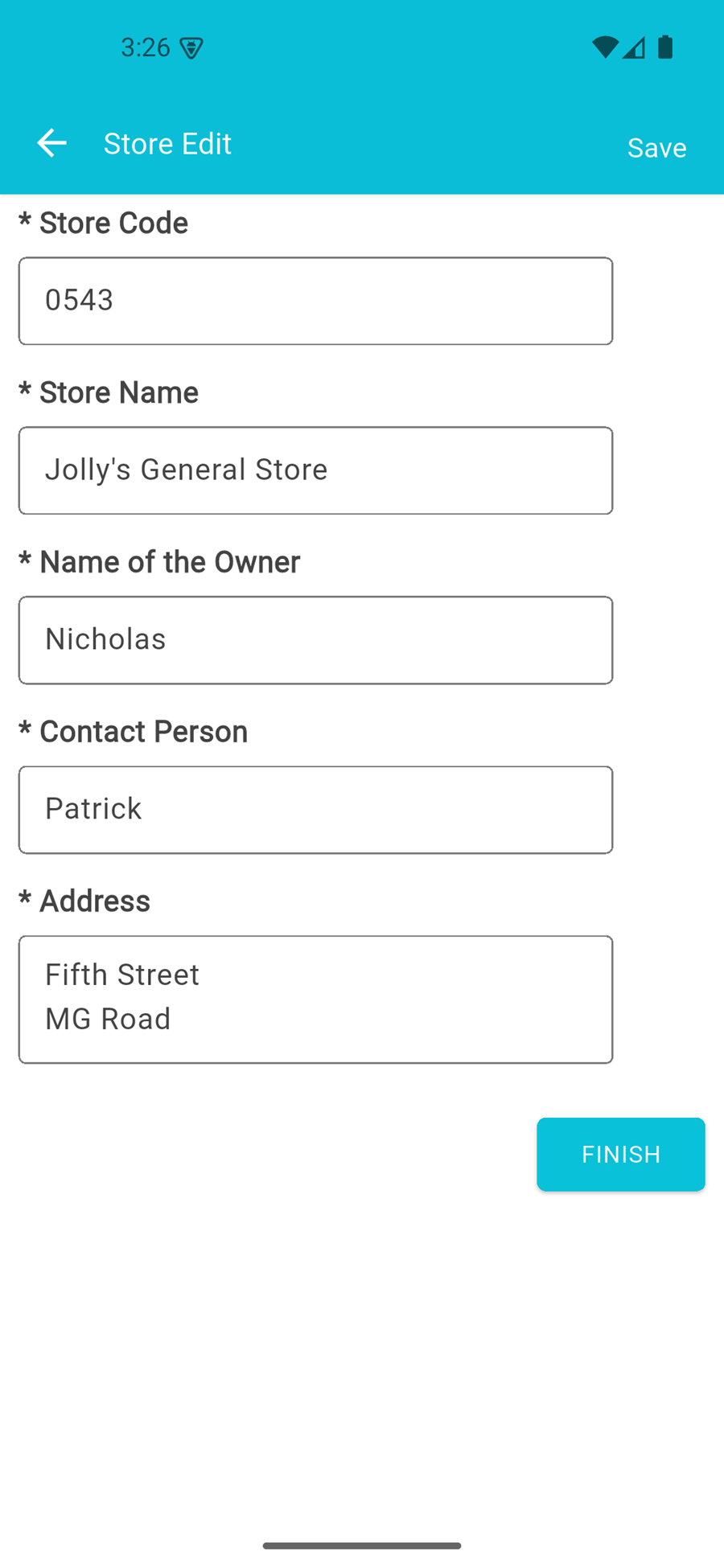
1. In the below screenshot the user has filled out all the information except a few information due to the same being unavailable at that moment.
To save the partially filled form, the user needs to tap on the "Save" Text-button present at the top-right corner of the mobile application screen.
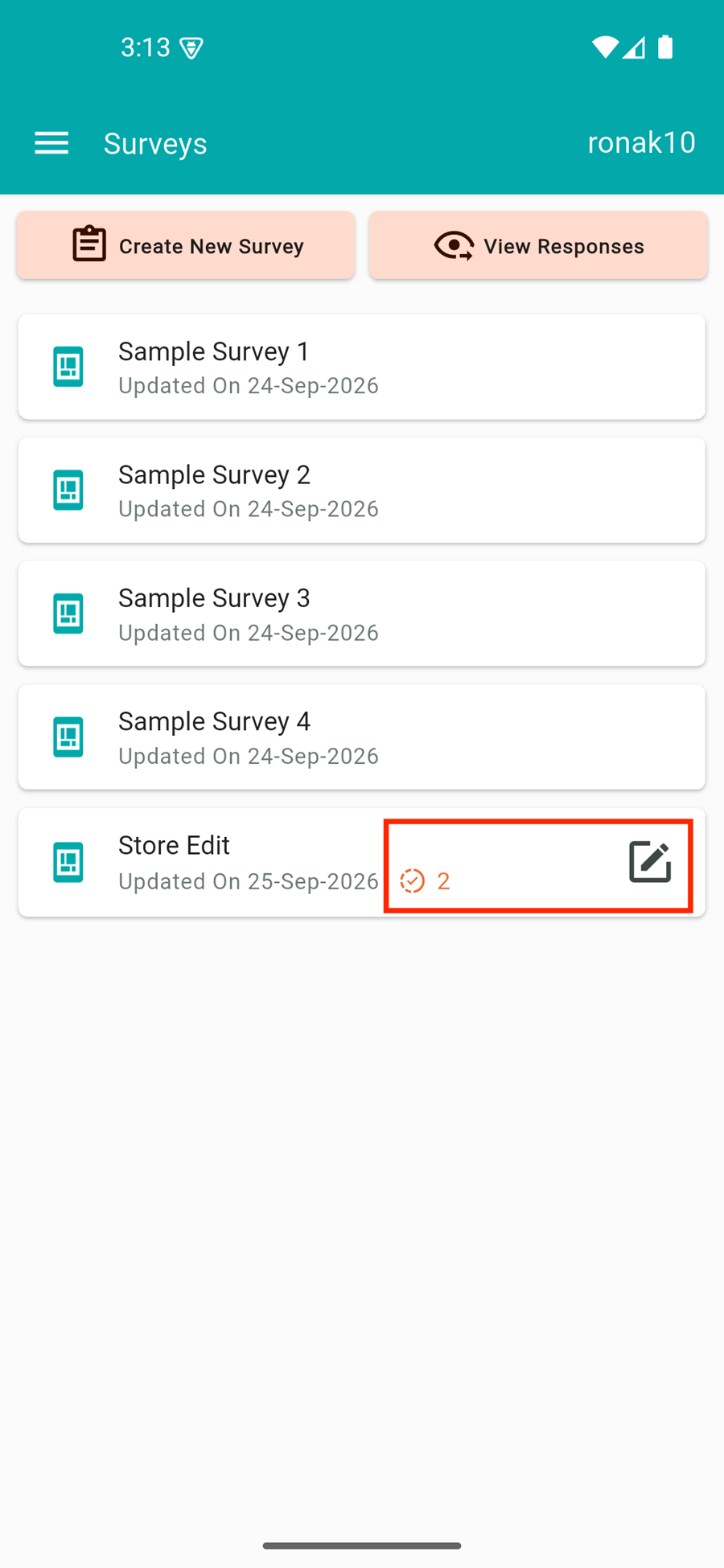
2. On the Surveys screen you will find the name of all surveys .The survey with partially filled forms will have an incomplete icon and edit icon also available next to it.
You will also see a numeric value beside the icon, it represents how many forms in that particular survey has been left incomplete.
To edit your partially filled survey form, tap on the edit icon.
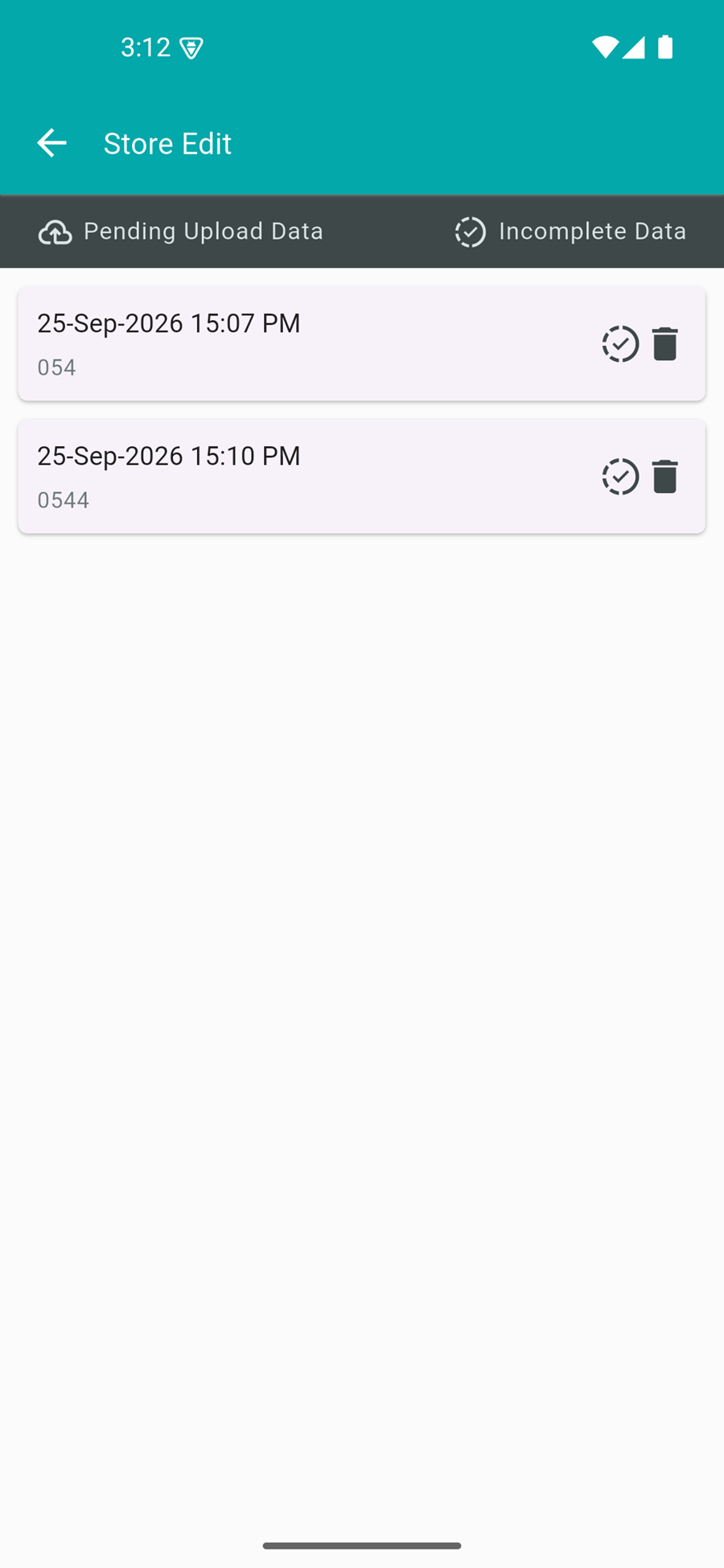
3. Open the Incomplete Data screen. Each saved form is listed with its date and time. A form that is still incomplete shows a check icon. Tap the check icon to open it where you left it. Tap the delete icon to remove that form.
4. You can start completing the form from where you left. Do not tap FINISH while the form is still incomplete. FINISH submits the response.
5. If Auto Upload is off, the form stays on the device. In the list it shows a cloud icon.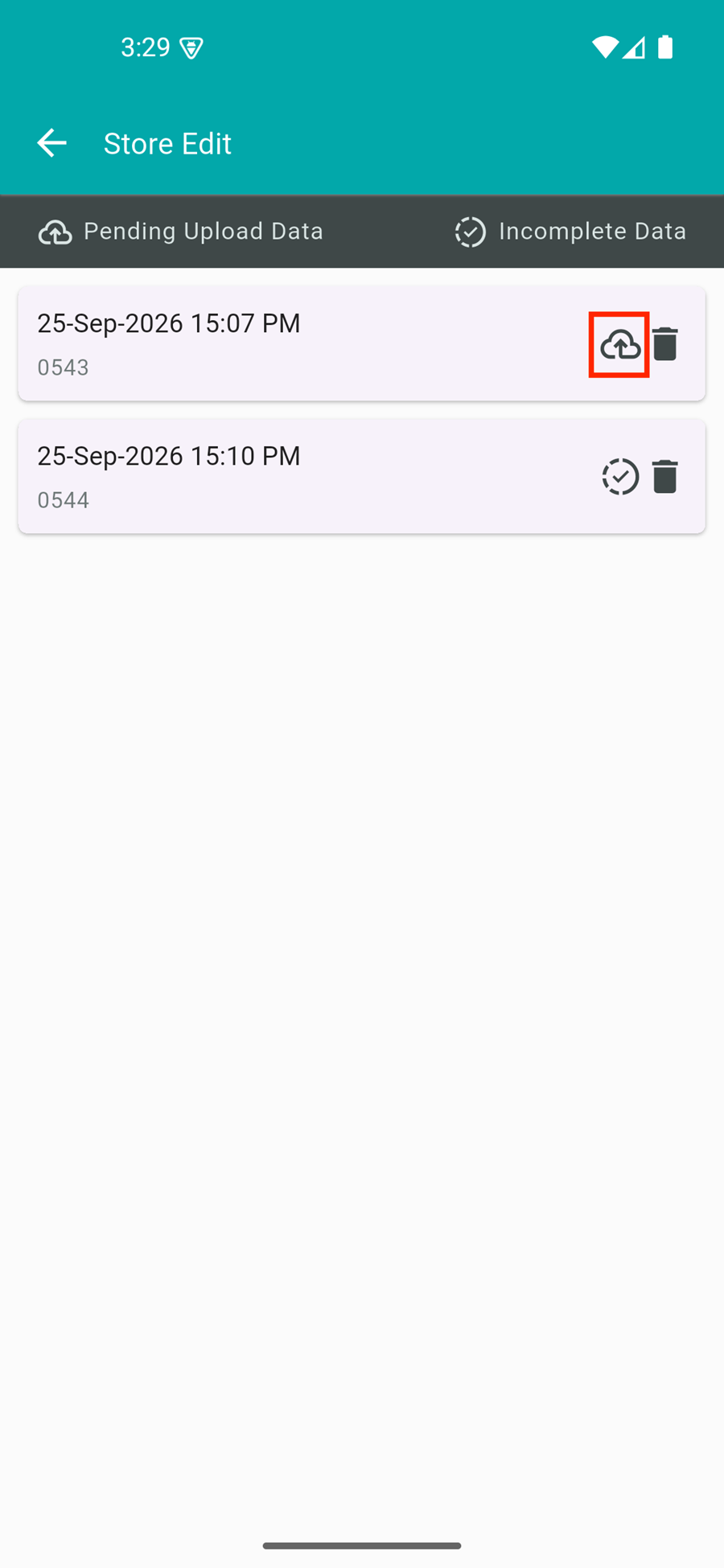
6. To send the finished form, open the menu and tap Upload Data. 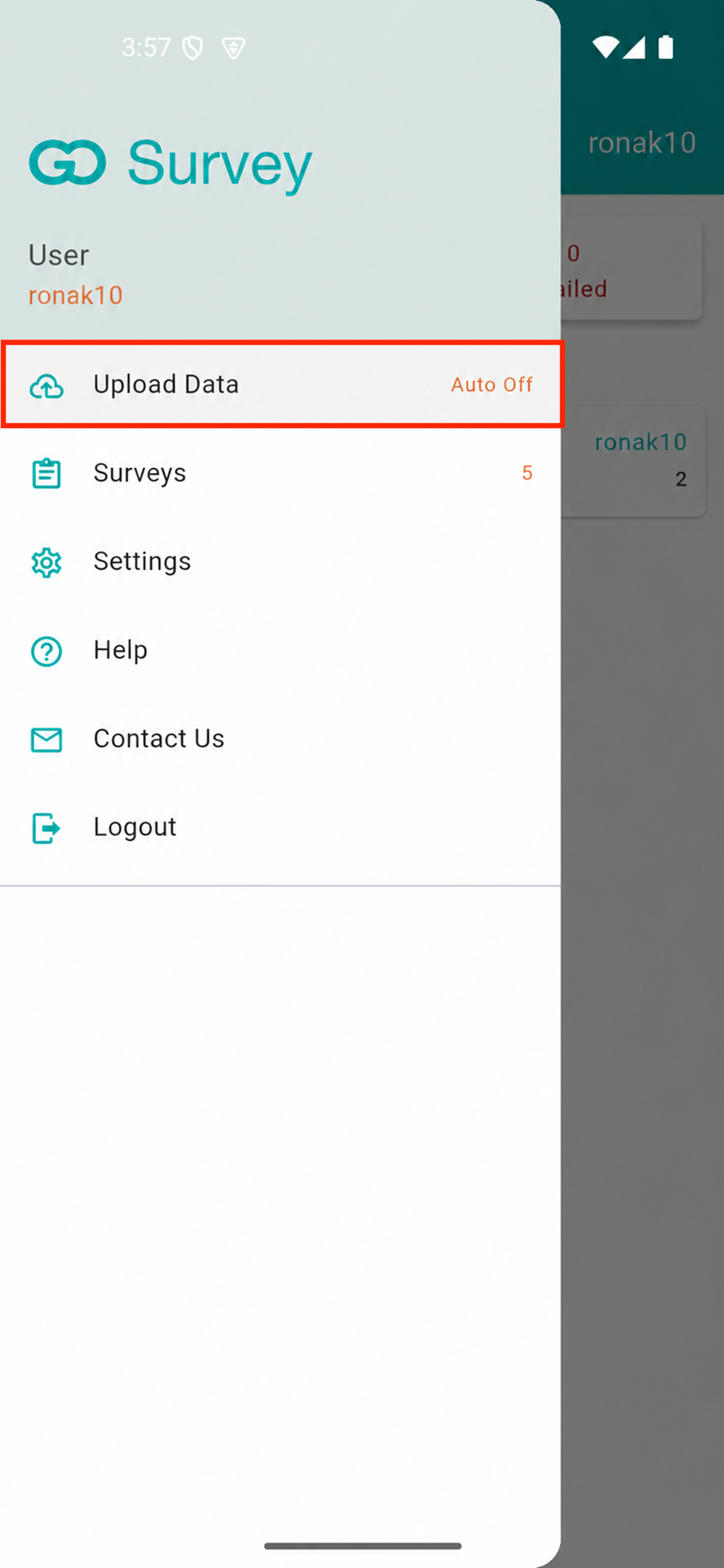
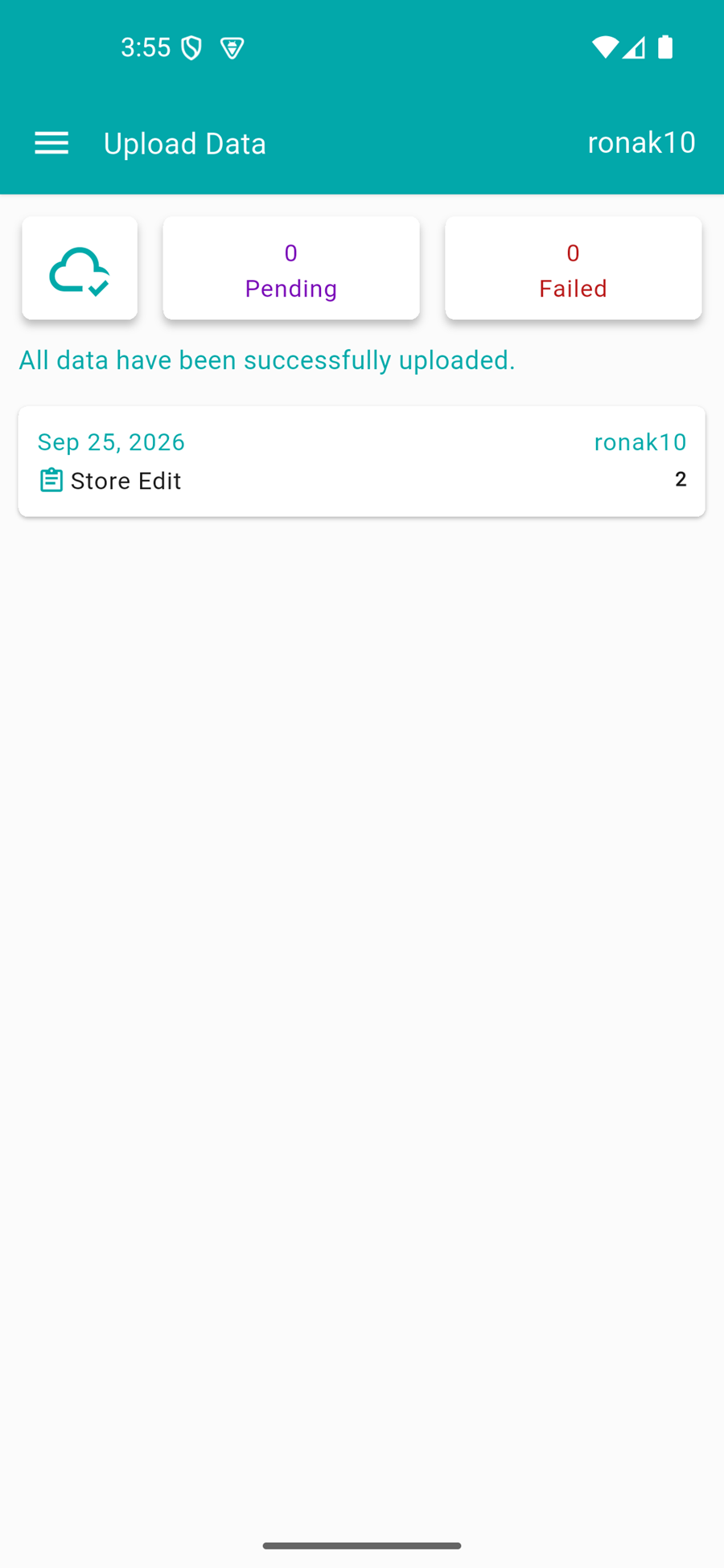
7. The upload starts on this screen. Pending is how many forms are still waiting. When it is done, the message All data have been successfully uploaded. is shown.