User Guide
A complete tutorial regarding how to use GoSurvey. We have covered and explained everything related to the working of GoSurvey and its features.

Answer Filtering
Answer Filtering also known as Option Filtering is a feature that filters the list of options of a current question based on the option selected by the respondent in the previous question.
It can be set on Radio Button, Check Box, Drop Down, and the same types with an Other or text option. It can also be set on Check Box Grid, Radio Grid with Other, Check Box Grid with Other, and a Composite Grid column of those types.
Step 1:
Open the survey questionnaire and click Answer Filtering at the top.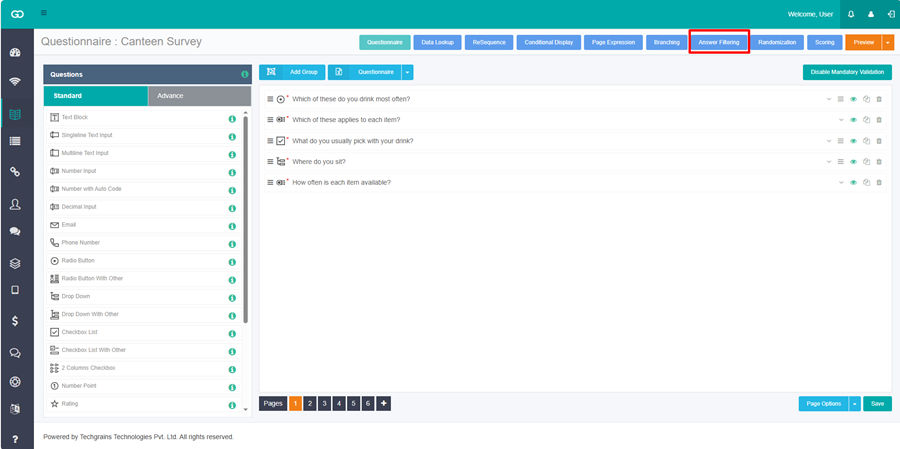
Step 2:
Expand the question whose options should change. Click Add Filter Criteria.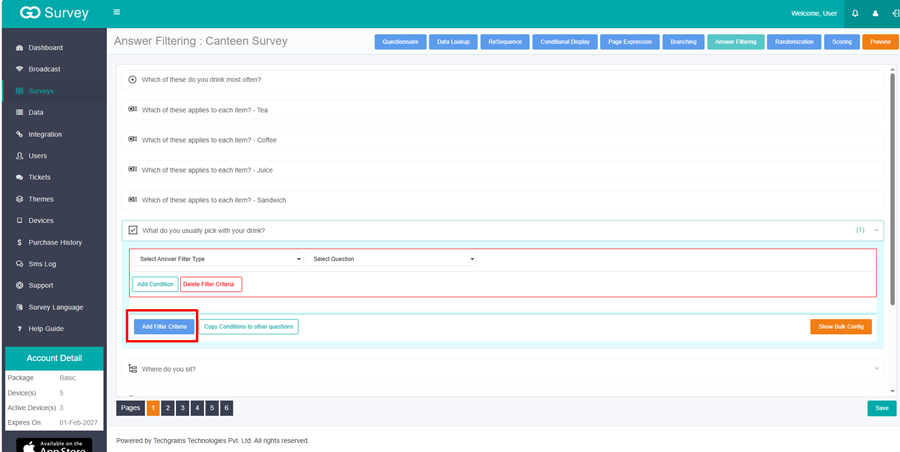
Step 3:
Open Select Answer Filter Type and choose how the options should change.
- Filter current question answers — show only the options you pick, when the condition matches.
- Show selected answers of other question — show the options the respondent selected in an earlier question.
- Show un-selected answers of other question — show the options the respondent did not select.
- Show options of other question — show the options from another question. This type has no condition.
- Exclude selected answers of other question — hide the options the respondent selected.
- Exclude un-selected answers of other question — hide the options the respondent did not select.

Step 4:
For Filter current question answers, open Select Filtered Answer and select the options to show.
For the other types, open Select Question and choose the earlier question. For Show selected answers of other question and Show un-selected answers of other question, Show Always Option keeps the options you select visible every time.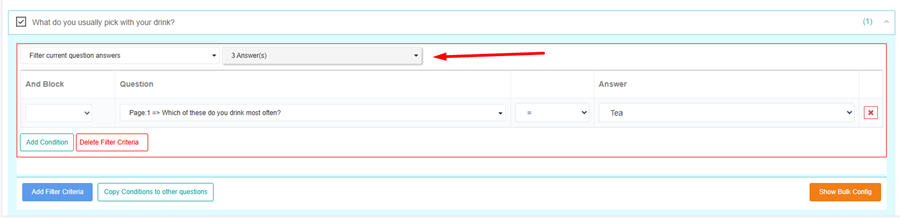
Step 5:
Click Add Condition. This is not used for Show options of other question.
- Question — the earlier question.
- Operator — the list matches that question. A Radio Button uses = and !=. A Check Box uses contains and Not contains. A number or date question also offers > and <. A text question offers =, !=, and contains. Has answer and Not answered do not need an answer. Is Any of and Is none of let you select more than one option.
- Answer — the value to match.
- And Block — give conditions the same color when all of them must match.
Step 6:
Click Save.
Example: the question Select the Brand comes first. The next question is Select the model.
On Select the model, click Add Filter Criteria. Choose Filter current question answers. In Select Filtered Answer, select the Nokia models. Add a condition: question Select the Brand, operator =, answer Nokia.
Add another filter criteria for the Samsung models, with the condition answer Samsung.
When the respondent selects Nokia, Select the model shows the Nokia models. When the respondent selects Samsung, it shows the Samsung models.
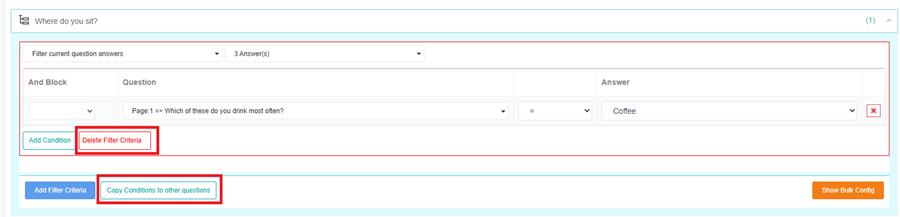
To use the same filter on another question, click Copy Conditions to other questions, select the questions, and click Apply.
Delete Filter Criteria removes that filter. The red cross removes one condition.