User Guide
A complete tutorial regarding how to use GoSurvey. We have covered and explained everything related to the working of GoSurvey and its features.

Branching
Branching also known as Page Skipping is a feature that skips the survey pages based on how the respondent is answering a current question. A custom path is created that redirects the respondent to the next relevant page based on their previous answers.
Below are the steps you need to follow in order to configure it.
Step 1:
Login to your GoSurvey account with the same credentials you used while creating the account.
Step 2:
Click on the survey where you need to configure the Branching feature. After selecting the survey, go on to the Questions screen as shown below.
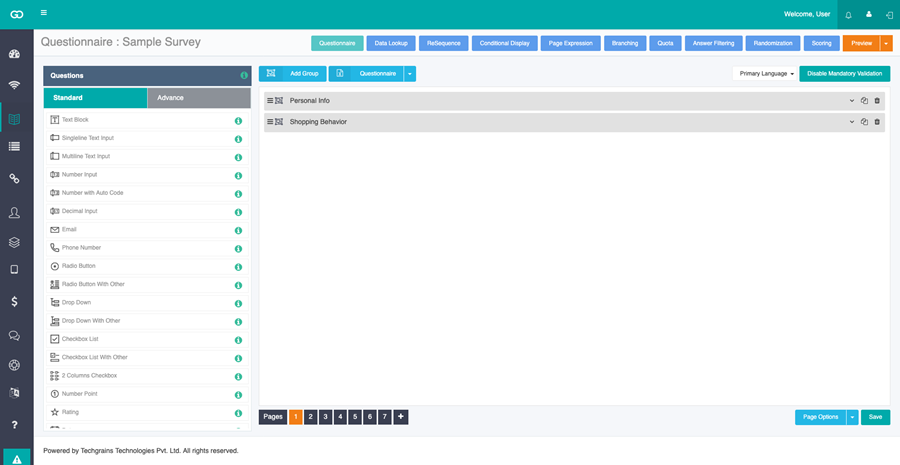
Step 3:
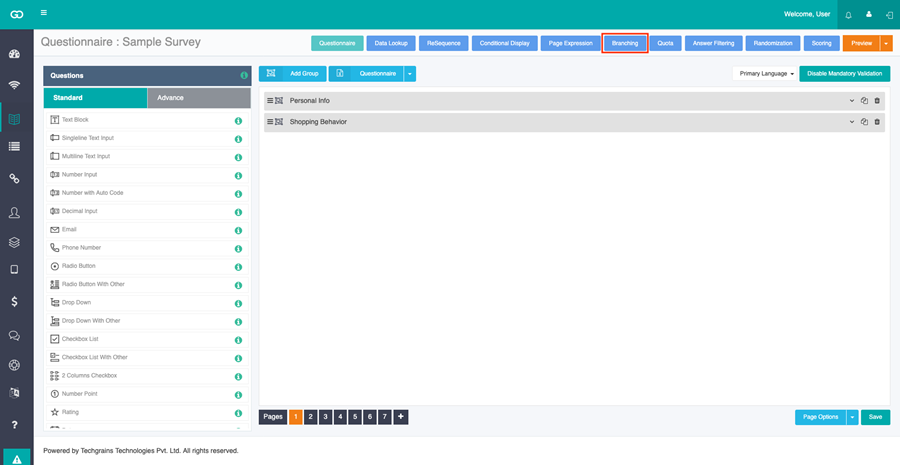
Select Branching button at the top of the questionnaire screen. The Branching screen opens for that survey.
Select the page at the bottom. Branching is set for that page. It cannot be set on the last page. A page that already has branching is highlighted.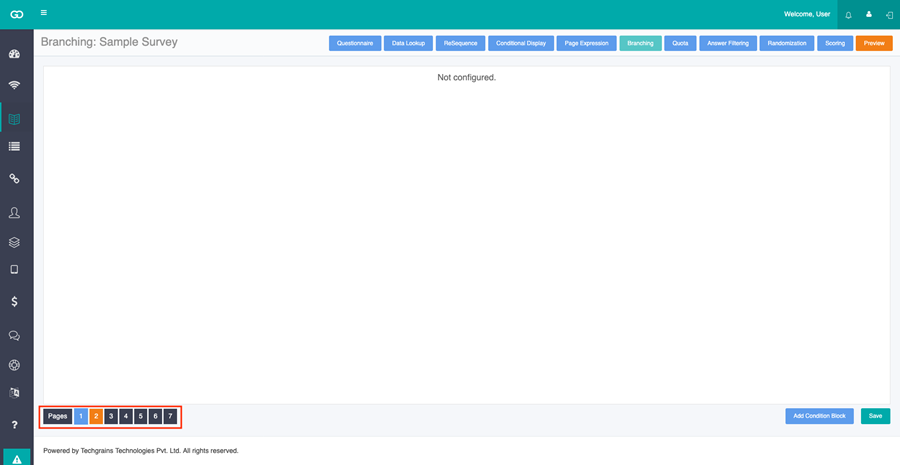
Step 4:
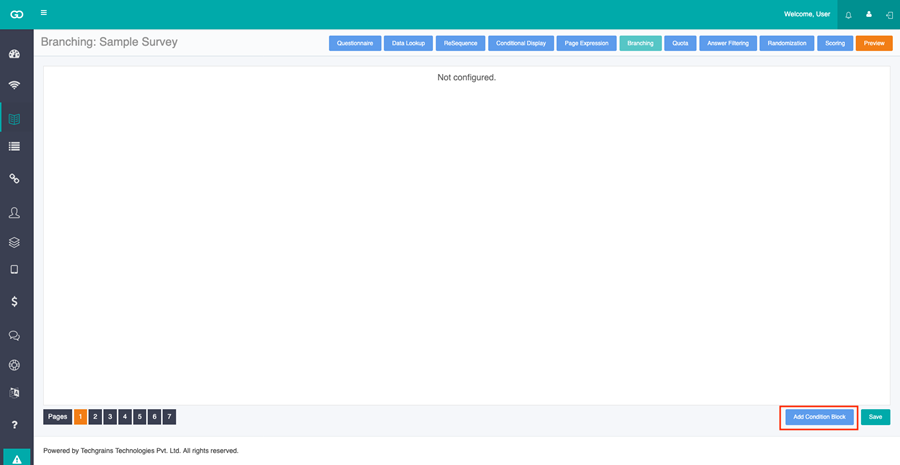
Click Add Condition Block at the bottom right. A condition block is added, where you set the question, the operator, the answer, and Skip To.
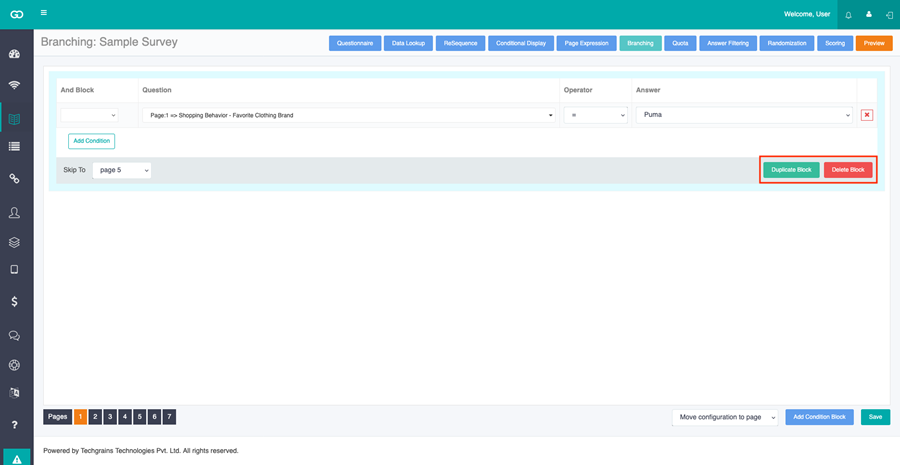
Click Duplicate Block to make another copy of the same condition block, so you can change the question, the answer, or Skip To without setting it up again.
Click Delete Block to remove that condition block from the page. The other blocks on the page stay as they are.
Step 5:
Branching example:
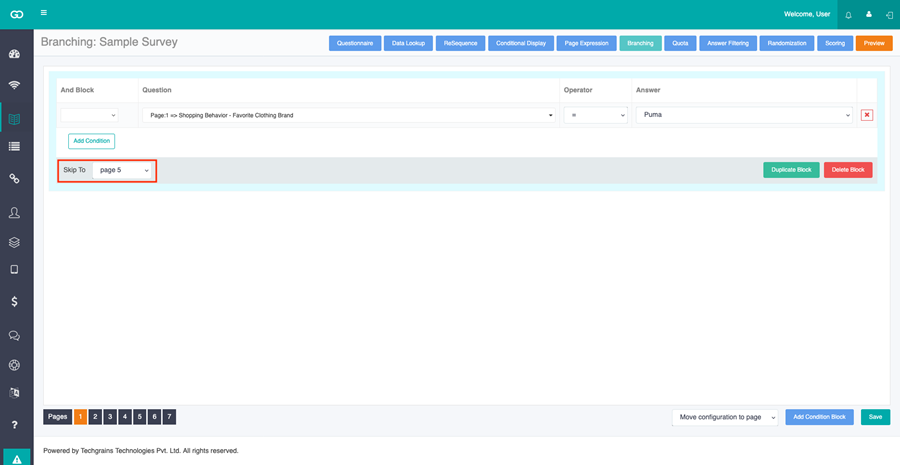
Let’s say there are questions on page 1, and if the customer on page 1 is selecting the “Shopping Behavior - Favorite Clothing Brand” = “Puma” then they should be able to view the details of only “Puma” brand. To set this configuration, you need to add condition block and select “Shopping Behavior - Favorite Clothing Brand” = “Puma” and then set “Skip to: page 5”.
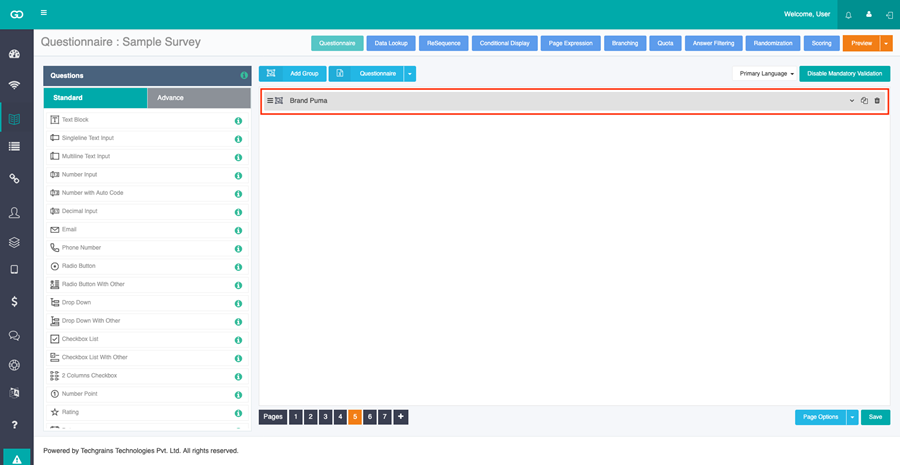
“Page 5” where the details of “Puma” brand is available.
To end the survey instead of opening another page, set Skip To to Exit Survey. Message On Exit is what the respondent sees at that point, such as a Thank You or a reason the survey has ended. Check Discard Data On Exit when this response should not be kept. Check Mandatory Exit when the respondent must leave and should not be able to stay on the survey.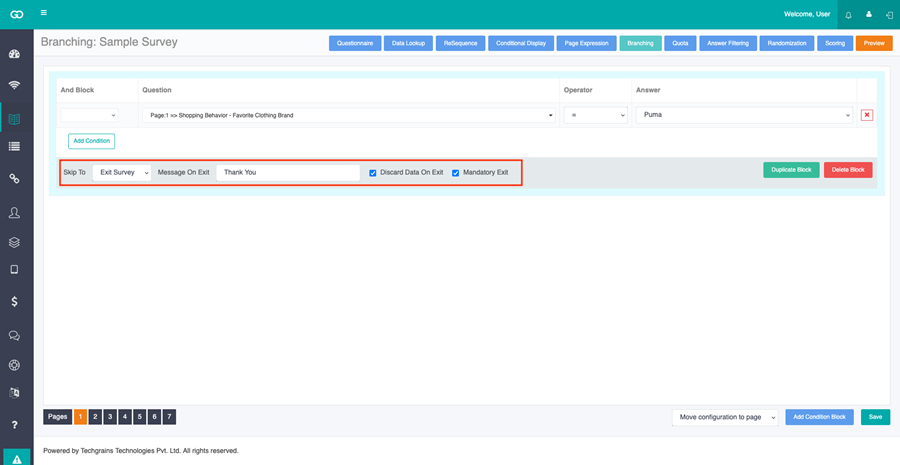
Step 6:
At the bottom, open Move configuration to page and choose another page. This moves all the branching on the current page to that page. The current page and the last page are not in the list.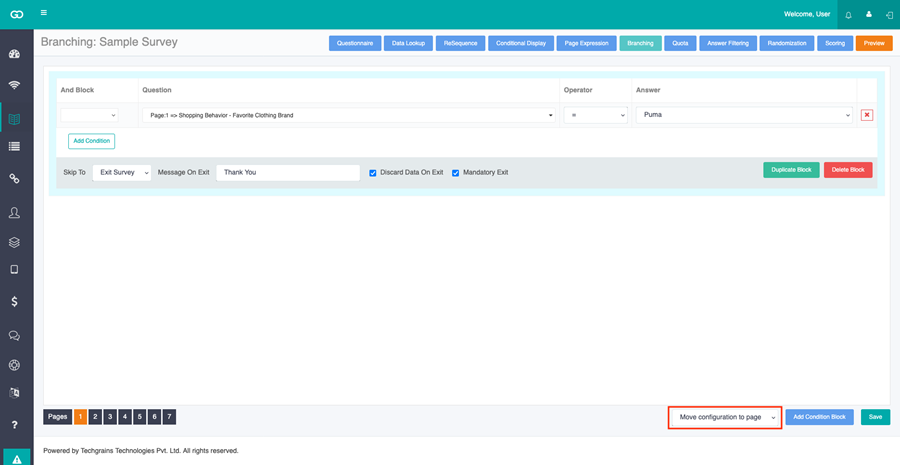
Step 7:
Click Save. Then Publish the survey.