User Guide
A complete tutorial regarding how to use GoSurvey. We have covered and explained everything related to the working of GoSurvey and its features.
Geo Fencing
How to restrict data collection outside the assigned geographical area?
With the help of the geo fencing feature, the location in which the data collection will be carried out can be set. Geo fencing limits data collection to a defined geographical area. The area can be one or more circles, or a polygon loaded from a KML file. This feature can be used, once enabled on request.
To configure, follow as per the steps below:
Step 1: Firstly, when the user creates a survey or has published the survey where the feature Geo Fencing feature is enabled to the user's account, then at the ‘Edit Surveys’ section of the admin site, there will be a ‘Background location Capture’ checkbox at the right side.
Step 2: On clicking it, ‘Is Location Capture Mandatory? checkbox’ will appear and on clicking that checkbox, “Enable Geofence” and “Geofence Data” will appear.
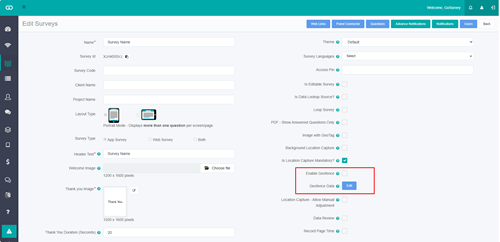
Step 3: Select Enable Geofence to turn geofencing on or off.
Step 4: Next to Geofence Data, click Add. If geofence data is already saved, the button shows Edit. The Add Geofence Data dialog opens. Choose a GeoFence Type.
Circle
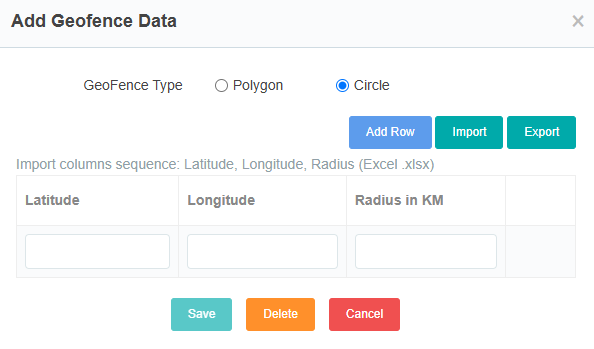
Use this when the allowed area is one or more circular zones.
- Enter Latitude, Longitude, and Radius in KM for each zone.
- Click Add Row to add another zone. Click the delete icon to remove a row. At least one row is required.
- Click Import to load zones from an Excel file (.xlsx). The column order must be Latitude, Longitude, Radius. A header row is optional.
- Click Export to download the current rows.
Polygon
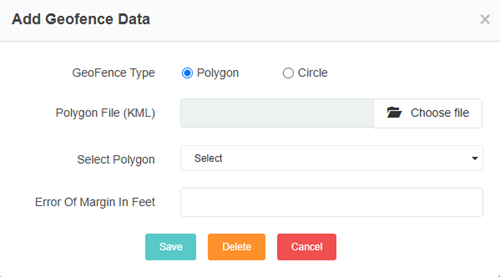
Use this when the allowed area follows a custom boundary.
- Upload a Polygon File (KML).
- Select the polygon name. If the file contains more than one polygon, choose the one to use.
- Error Of Margin In Feet is optional. Enter a whole number of 0 or more. This allows a small buffer around the polygon boundary.
Step 5: Click Save in the dialog to store the geofence. Click Delete to remove a saved geofence, or Cancel to close without saving.
After this, data collectors can fill the survey in the GoSurvey app only when their current location is inside the configured area.