User Guide
A complete tutorial regarding how to use GoSurvey. We have covered and explained everything related to the working of GoSurvey and its features.

How to configure scoring?
GoSurvey allows you to give scores to the questions. This scoring helps the user to analyze the performance based on the scores given to the particular area/group/department. To configure scoring to the survey, follow the below steps:
Step 1:
Create a survey. For detailed information, review “How to create a survey?”
Step 2:
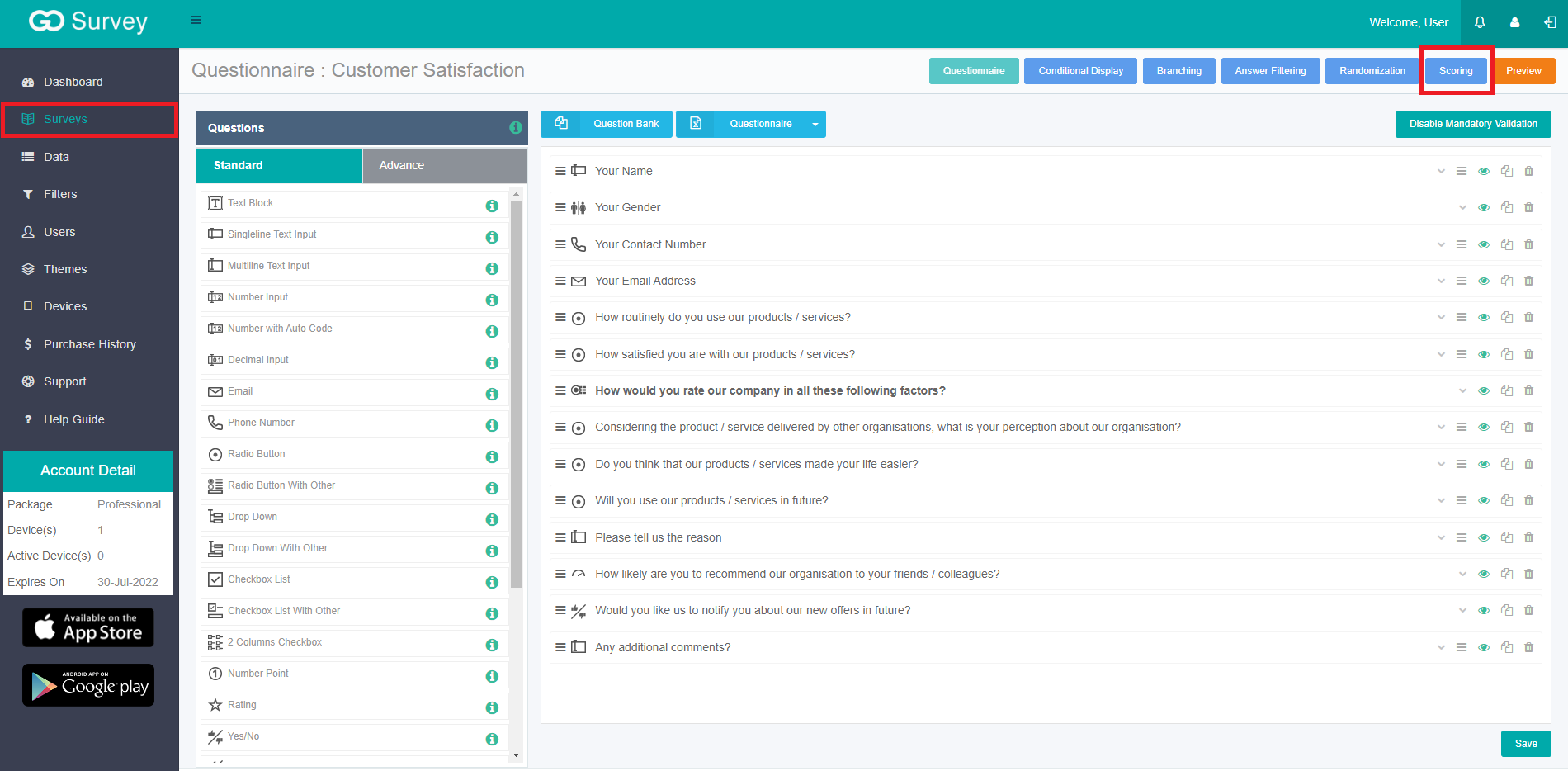
The list of surveys will appear that the user has created. To configure the scoring click on edit survey. you will see a Scoring button in the top right corner.
Step 3:
Click on the “Scoring” button.
Step 4:
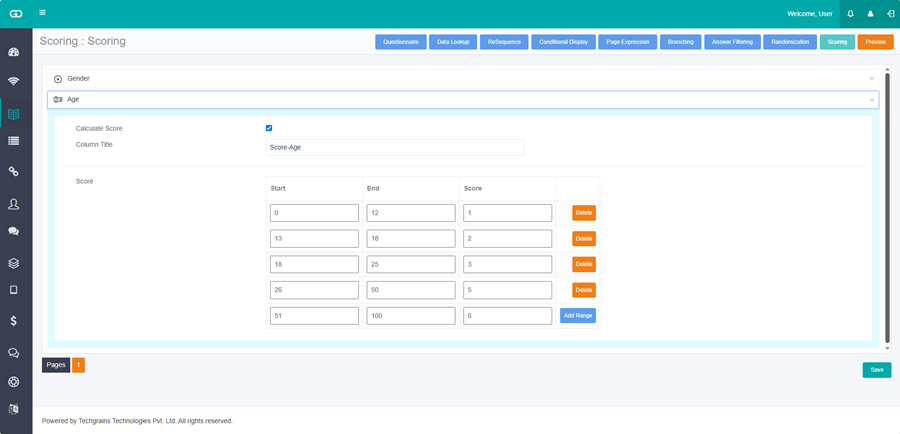
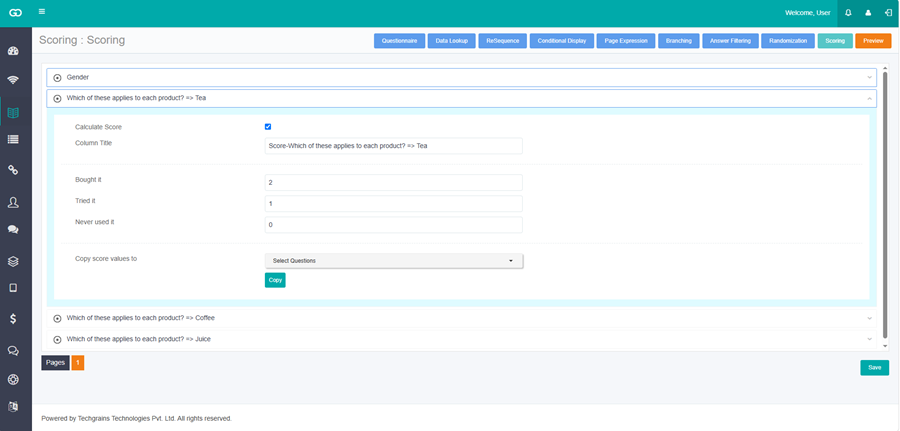
Expand the group or question. Select Calculate Score, then enter the scores.

- Column Title — the name shown for this score in the report. It is filled in as Score - followed by the question text. You can change it.
- For a choice question, enter a score next to each answer. Enter the score value.
- For a number question, enter Start, End, and Score for each range. Click Add Range to add another range, or Delete to remove one.
- Copy score values to — select other questions of the same type, then click Copy to apply the same scores.
Step 5:
Once the scoring value is configured, click on the Save button.
Step 6:
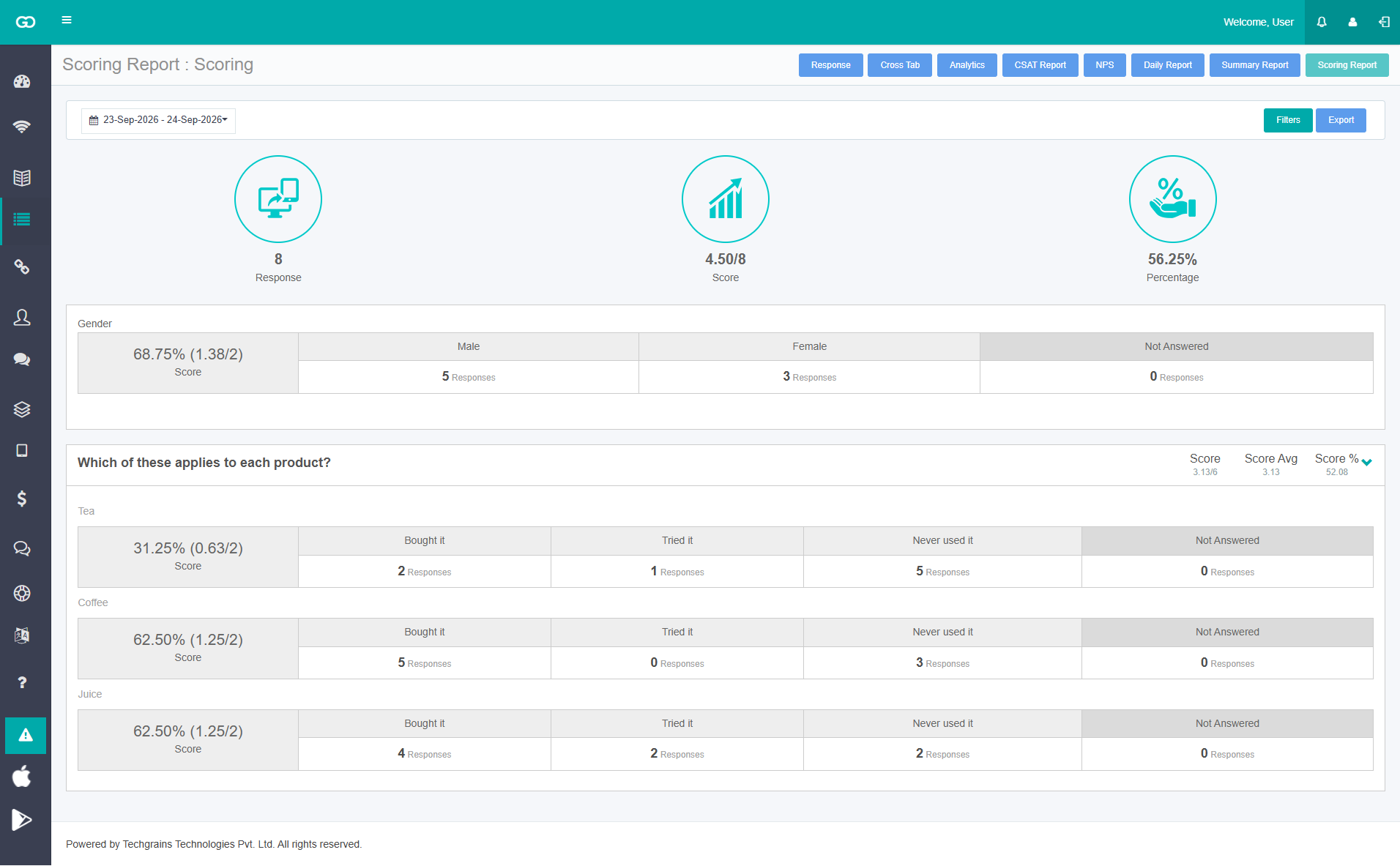
The collected data will automatically calculate the scoring and display the report.
Step 7:
To view the scoring report, On the left panel, click on the Data option.
Step 8:
On the top right of the Data screen - you will see a “Scoring Report” button.
Step 9:
Click on the “Scoring Report”. Here you will see the required scoring report.